Switcher templates and your own templates
Choose a Classic or Modern template for your switcher, apply it, and save your own template after you customize it.
A template is a ready-made look for your switcher. Choose one from the template gallery, or customize it and save your own. Each device, desktop and mobile, has its own template.
Templates by plan
- The default template is on every plan. It is a Classic template.
- Contactez-nous pour activer cette fonctionnalité The other Classic templates.
- Contactez-nous pour activer cette fonctionnalité The Modern templates.
You can open the gallery on any plan and preview every template. A template your plan does not include stays locked until it is turned on.
A locked template shows a Nous contacter button. Contact us and we turn the templates on for your store.
Steps
Open the Template section
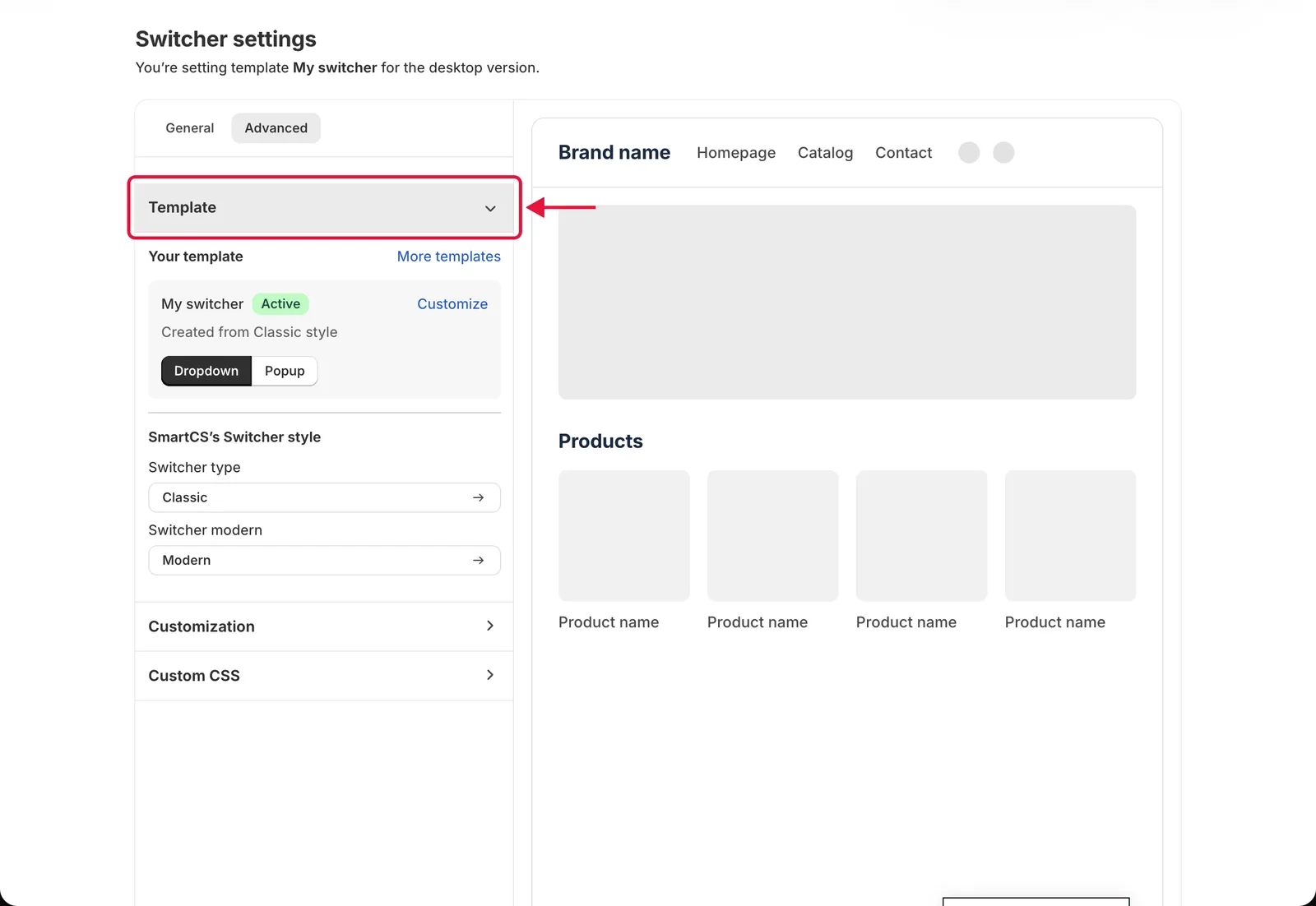
In Paramètres du switcher, open the Avancé tab and then Modèle. Under Votre modèle, you see the template in use, marked Actif.
Choose how it opens
For a Classic template, choose Menu déroulant or Fenêtre contextuelle under Mode d'ouverture du switcher. Click Enregistrer in the bar at the top of the page. A Modern template ignores this choice.
Open the gallery
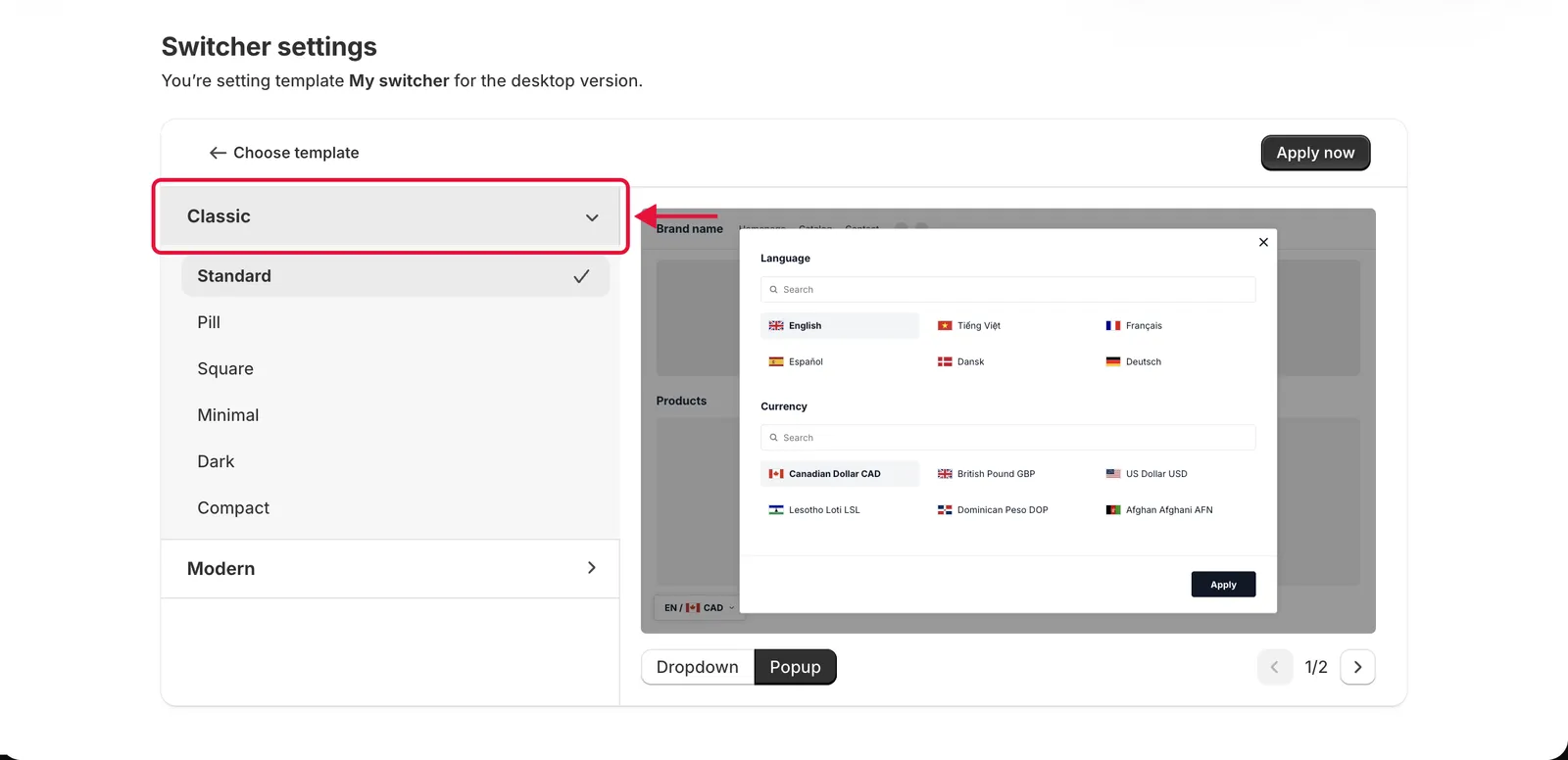
Under Style du switcher SmartCS, click Classique or Moderne. The gallery replaces the settings.
Preview a template
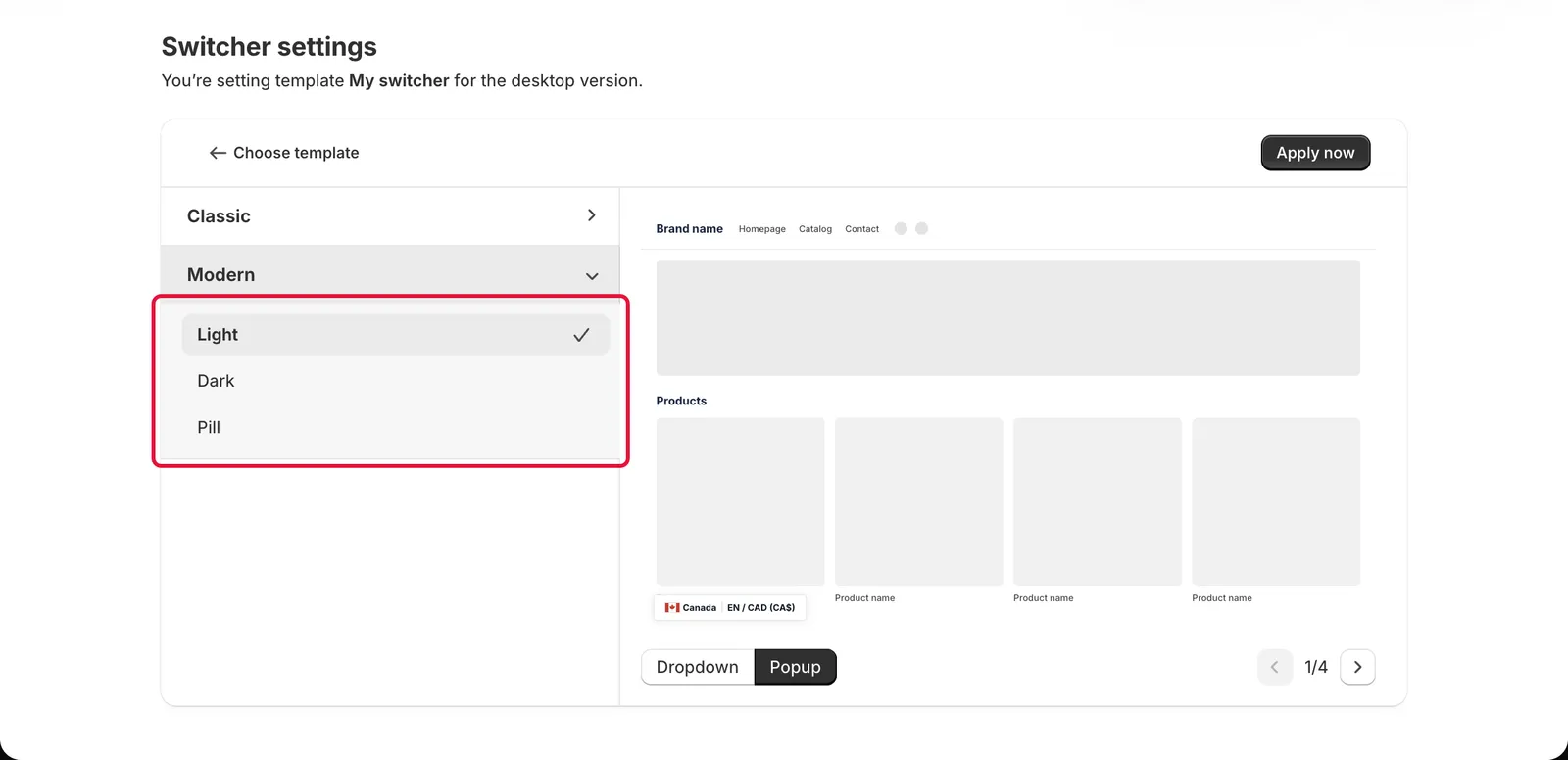
Pick a template in the list on the left. The sample store page on the right changes. Switch between Menu déroulant and Fenêtre contextuelle, and use the arrows to see more sample pages.
Apply the template
Click Appliquer maintenant. The template is saved at once. You do not need the save bar. The button is off when the template is already in use or is locked.
To leave without applying, click Choisir un modèle.
Attention
Applying a template replaces the unsaved changes you made to the same device. Save or discard your changes first.
Save your own template
Contactez-nous pour activer cette fonctionnalitéCustomizing needs a plan that includes Classic templates. When you change a template and click Enregistrer, the app asks you to name it. See Choose where the switcher appears for the settings.
- In Enregistrer comme votre propre modèle, enter a name in Nom du modèle. Use up to 60 characters.
- Click Enregistrer. The template becomes the one in use for that device.
If you edit a template that is already your own, the app saves your changes into it and does not ask for a name. If you already have a template with the same name, the app asks for a different one.
When you reach the number of templates your plan allows, the app shows Écraser votre modèle existant ?. Choose the template to replace, then click Enregistrer. You can also delete a template you no longer need first.
Manage your templates
Once a device has its own templates, Plus de modèles appears in the Template section. It opens Votre modèle personnalisé. Each template shows its name, the template it came from, and when you last saved it.
- Click Appliquer to use a template. It saves at once.
- Click Personnaliser on the template in use to edit it.
- Click the bin icon to delete a template that is not in use. In Supprimer votre modèle ?, tick the box and click Supprimer. You cannot recover a deleted template.
Articles associés
Set up the switcher on your store
Choose who sees the switcher and which template it uses, save your changes, and turn on the app embed so shoppers can pick a currency and a language.
Choose where the switcher appears
Place the switcher in a corner, on the side, over the top of the page or inside your theme, and set the corner and the distance from the edge.
Dernière mise à jour : 18 novembre 2026