Translate your homepage, pages and navigation
Translate your pages, navigation menus, homepage text and homepage title so shoppers see them in their language.
Translate the pages, menus and homepage text of your store, one language at a time. Each kind of content is a row in the Content translation list.
Before you start
Add the language first. See Add and publish languages. Then open コンテンツの翻訳 and choose the language you want to translate into.
Steps
Translate pages
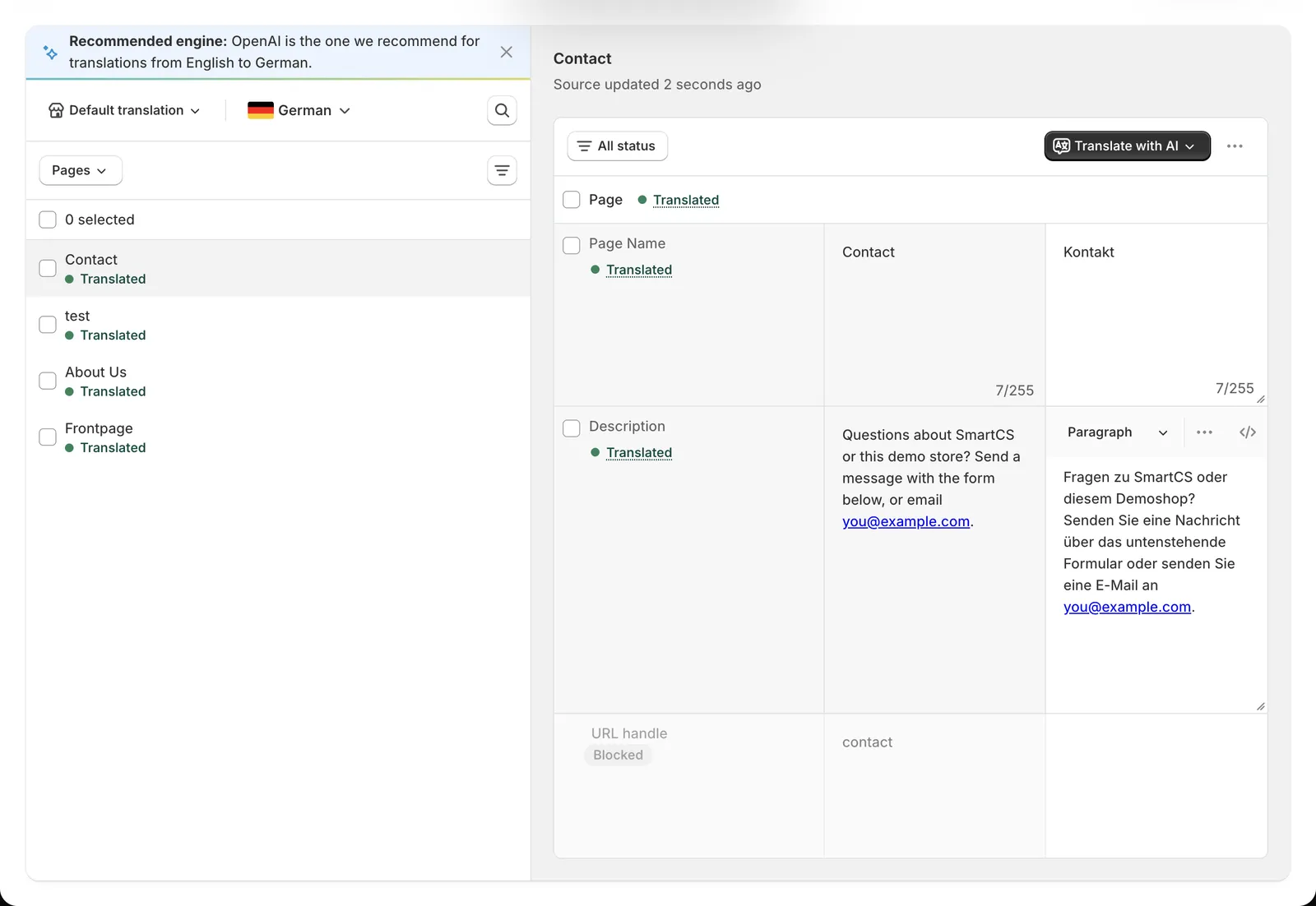
Open the ページ row. Select a page. Each field has the original text on one side and your translation on the other. Type the translation, or use AIで翻訳 on a field. A page has a name, a description, a URL handle, a meta title and a meta description. The last three are SEO fields. SmartCS blocks them until you turn on SEO translation, which needs Local Plus or higher, so on the Free plan they stay blocked. See Translate SEO.
Translate navigation
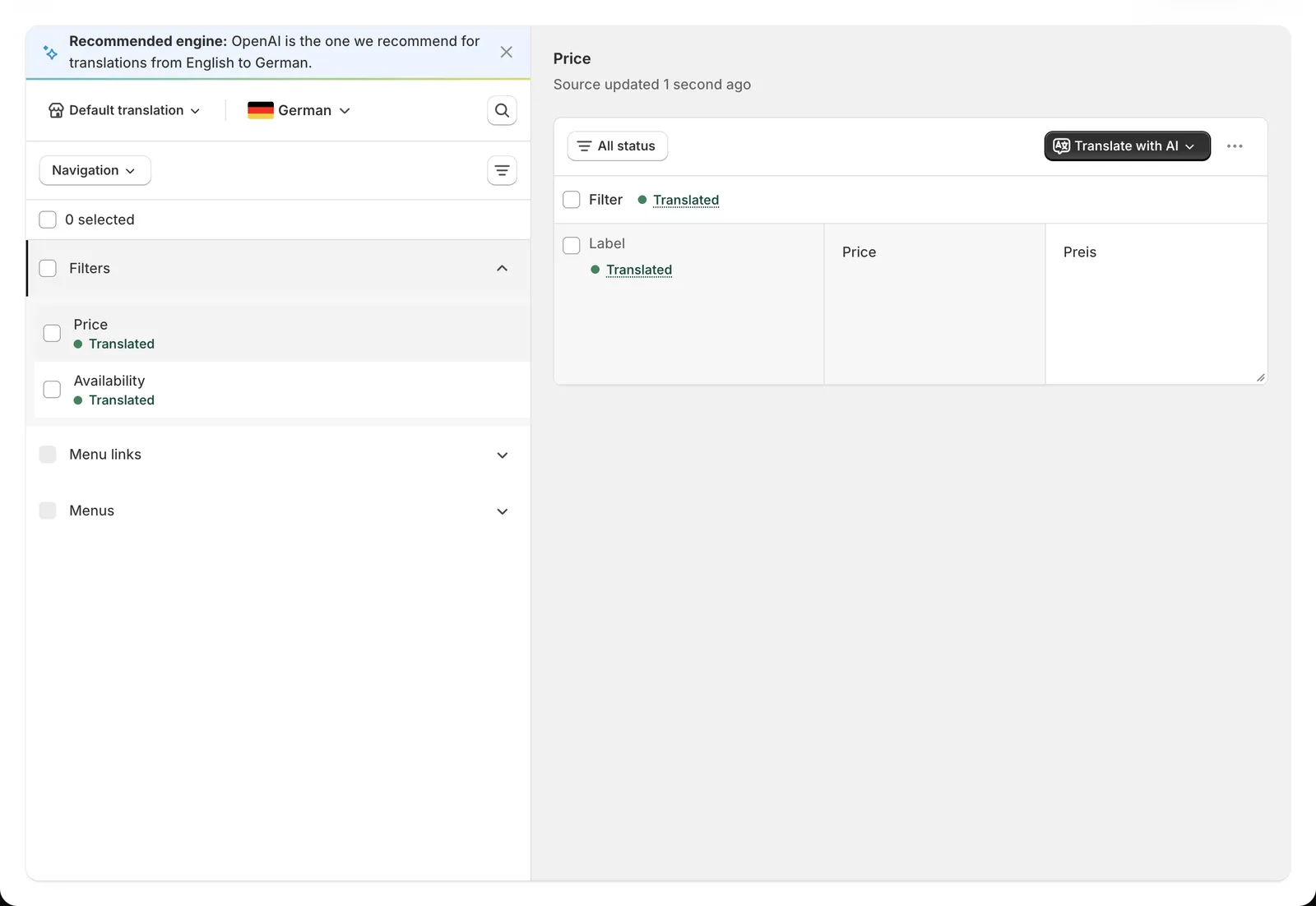
Open the ナビゲーション row. It groups menus, メニューのリンク and storefront filters. Translate the menu titles, the link titles and the filter labels.
Find homepage text
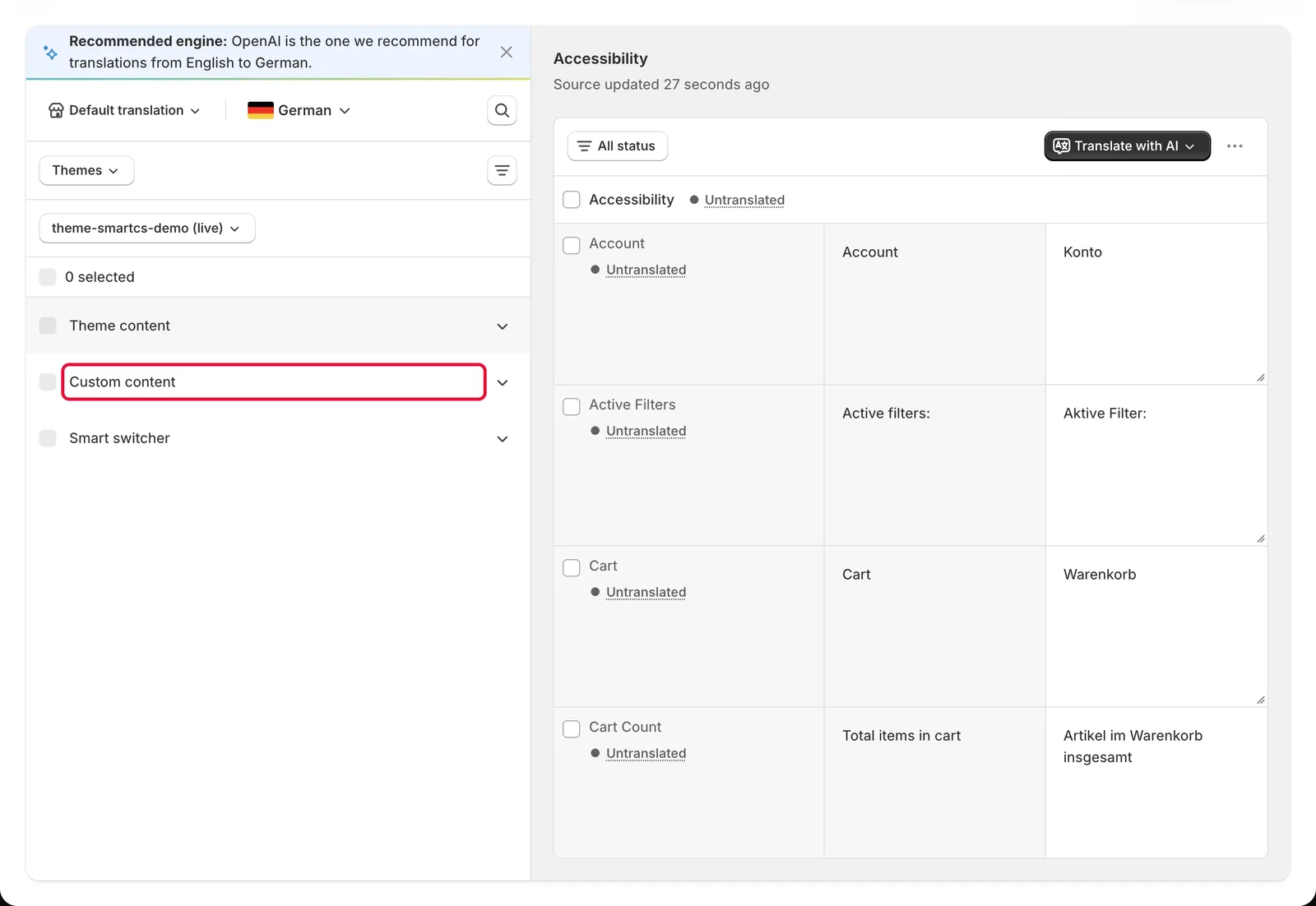
Homepage text, such as a banner heading or a button label, belongs to your theme. Open the テーマ row. Its texts are split into two lists, Theme content and Custom content. Open them and look for the section you want.
ご利用になるにはお問い合わせくださいTo find an exact text, select the search button at the top of the list and type at least two letters. On the Free plan the search only filters the list by title. See Find and filter content.
Translate the homepage title
ご利用になるにはお問い合わせくださいOpen the Preferences row. It holds the homepage title and the homepage meta description that search engines show. These are SEO fields, so SmartCS blocks them until you turn on メタタイトル and メタディスクリプション translation. Follow Translate SEO.
Good to know
メモ
You can edit translations by hand only in languages that have translation editing turned on. A language without it opens as read-only.
- A page, menu or theme text shows in its language on the storefront after you save. Text you have not translated shows in your original language.
- When you change the original text in Shopify, sync it so SmartCS sees the change. See Sync content and conflicts.
関連記事
Use a different image or file per language
Choose a different image or PDF file for each language, so shoppers see the right file in their language.
Translate SEO: meta titles, descriptions and alt text
Turn on SEO translation, then translate meta titles, meta descriptions and product image alt text for each language.
最終更新日:2026年11月18日