Exchange rates: automatic, manual or with a markup
Choose how SmartCS converts your prices into each currency: the automatic daily rate, a rate you type, or the automatic rate plus a markup.
Choose how SmartCS converts your prices into each currency. Every currency can use the automatic daily rate, a rate you type yourself, or the automatic rate plus a markup. You set the rate for one currency at a time.
Before you start
Add the currency first. See Add and publish currencies. Your store currency has no rate, because prices convert from it.
Steps
Find the currency
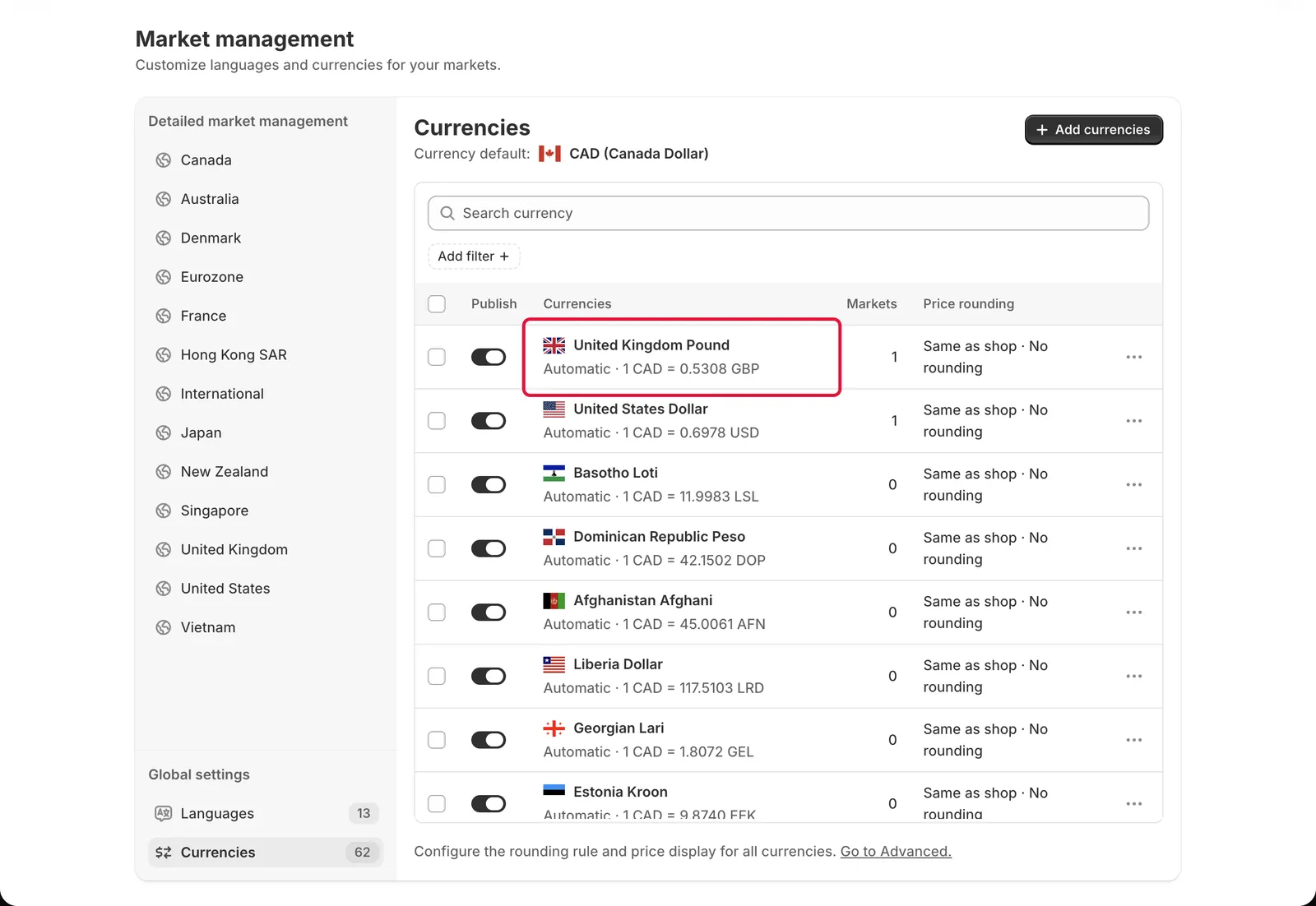
Open मार्केट प्रबंधन. Under ग्लोबल सेटिंग्स, click मुद्राएँ. The line under each currency name shows the rate type and the rate in use: how many units of this currency 1 unit of your store currency buys.
Open Edit format
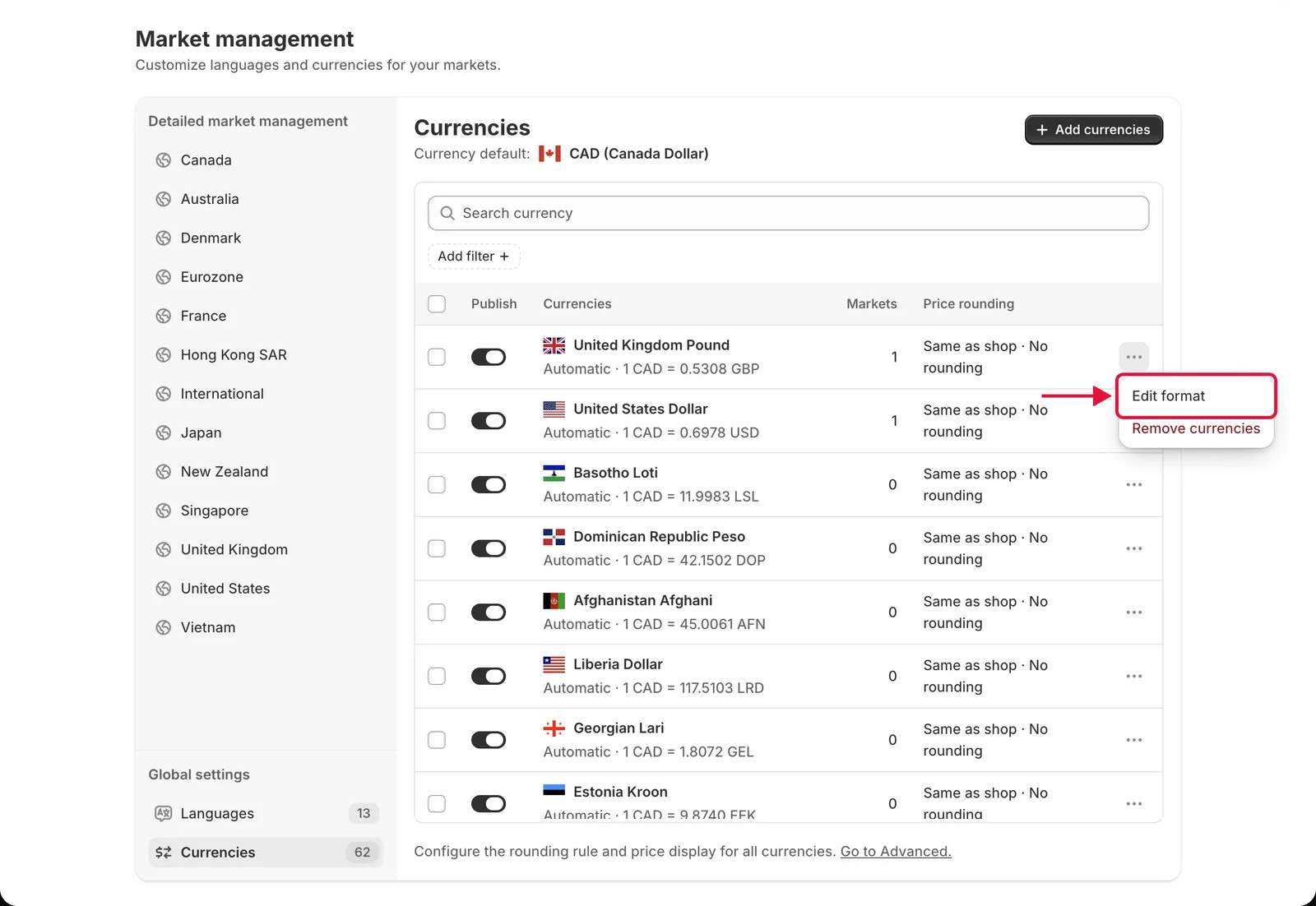
Open the actions menu at the end of the row and click फ़ॉर्मैट एडिट करें. The मुद्रा फ़ॉर्मैट dialog opens.
Pick a rate type
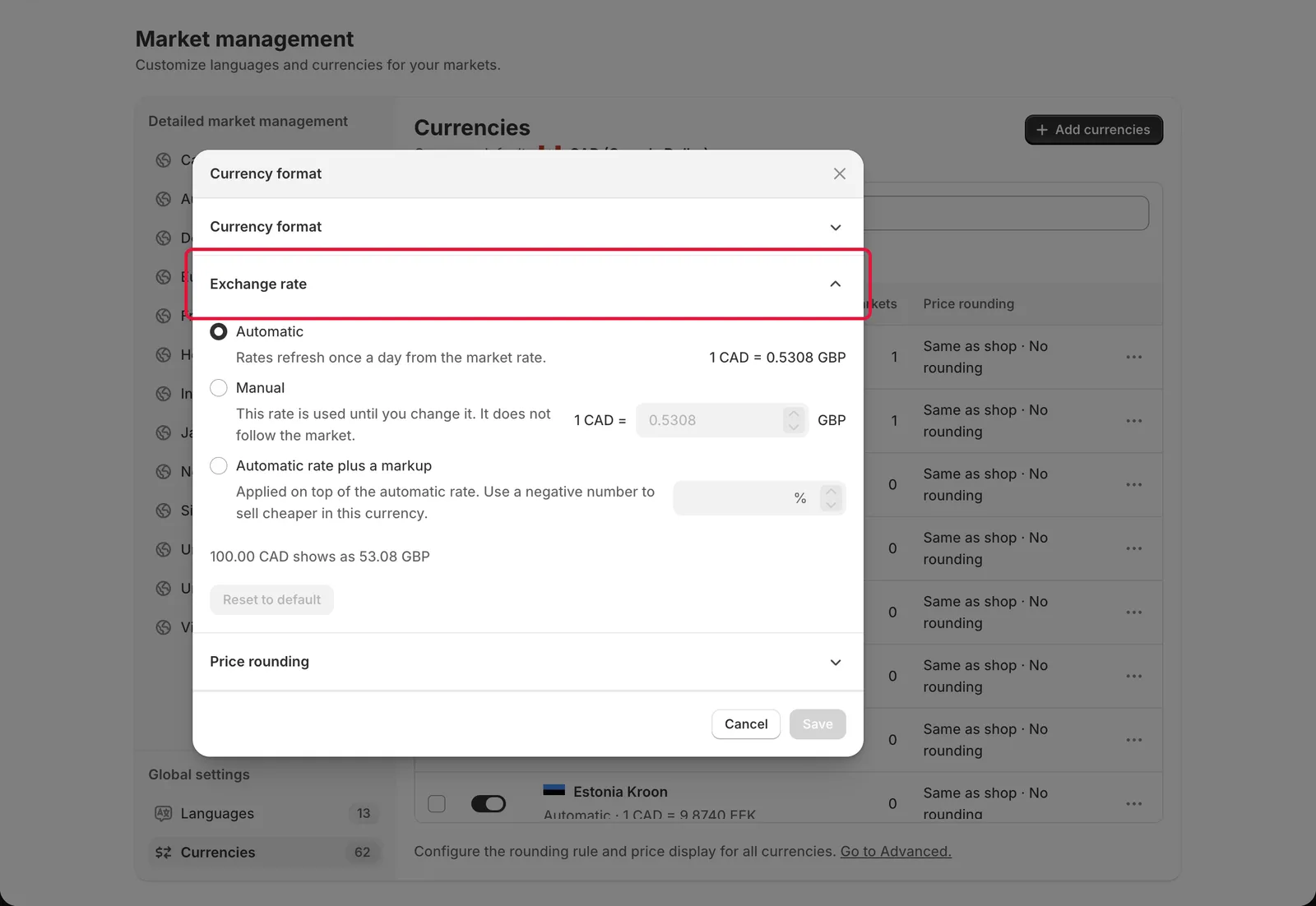
Open the विनिमय दर section and pick one option:
- स्वचालित: the app uses the market rate. It refreshes once a day.
- मैन्युअल: type how many units of this currency 1 unit of your store currency equals. The number must be greater than zero. The app uses it until you change it. It does not follow the market.
- स्वचालित दर और मार्कअप: the app adds a percentage on top of the automatic rate. Enter a number from -90 to 500. A negative number lowers the price.
Check the preview
Look at the preview line under the options. It shows what 100 units of your store currency become in this currency.
Save the rate
Click सेव करें. The button stays off until you change something. The app shows सेव हो गया and publishes the change to your storefront.
Good to know
- To go back to the automatic rate, open the section again and click डिफ़ॉल्ट पर रीसेट करें, then save.
- A currency shows अभी कोई दर नहीं when no rate exists for it yet.
- To find currencies by rate type, click फ़िल्टर जोड़ें above the table and choose विनिमय दर के प्रकार के अनुसार.
- The same dialog also sets the price format and the rounding for the currency. See Format how prices look and Round converted prices.
- The preview does not include rounding. Rounding is applied after the rate, so the price shoppers see can differ slightly from the preview.
नोट
While your store is in Multiple currencies mode, Shopify Markets sets prices. The rates you set here do not apply, the app shows ये कीमतें Shopify Markets संभाल रहा है, and फ़ॉर्मैट एडिट करें is turned off. See Multiple currencies mode vs Switcher mode.
संबंधित लेख
Supported currencies
See which currencies SmartCS can convert your prices into, and how to search the list before you add one to your store.
Format how prices look
Write your own price format for a currency, with or without the currency code, using placeholders for the amount, and see an example before you save.
आख़िरी अपडेट: 18 नवंबर 2026