Translation engines: OpenAI, Gemini, Grok, DeepSeek
See which translation engines SmartCS offers and what each needs. Set the tone, or use your own API key for OpenAI or Gemini.
An engine is the translation service that does the work when you translate with AI. Pick the engine in the translation dialog, and set each engine's tone in Paramètres de localisation.
The engines
Free engine
The Free engine is on every plan. It costs nothing and does not use your tokens or monthly allowance. It has no tab in Paramètres de localisation, because it has nothing to set.
OpenAI
Contactez-nous pour activer cette fonctionnalitéOpenAI is the recommended engine for most languages. It uses your AI allowance. With a higher plan you can use your own API key instead.
Gemini
Contactez-nous pour activer cette fonctionnalitéGemini uses your AI allowance. You can also use your own API key on a higher plan.
Grok
Contactez-nous pour activer cette fonctionnalitéGrok uses your AI allowance. It has no own-key option.
DeepSeek
Contactez-nous pour activer cette fonctionnalitéDeepSeek uses your AI allowance and has no own-key option. SmartCS recommends it when you translate to Traditional Chinese.
Set an engine up
Open the engine settings
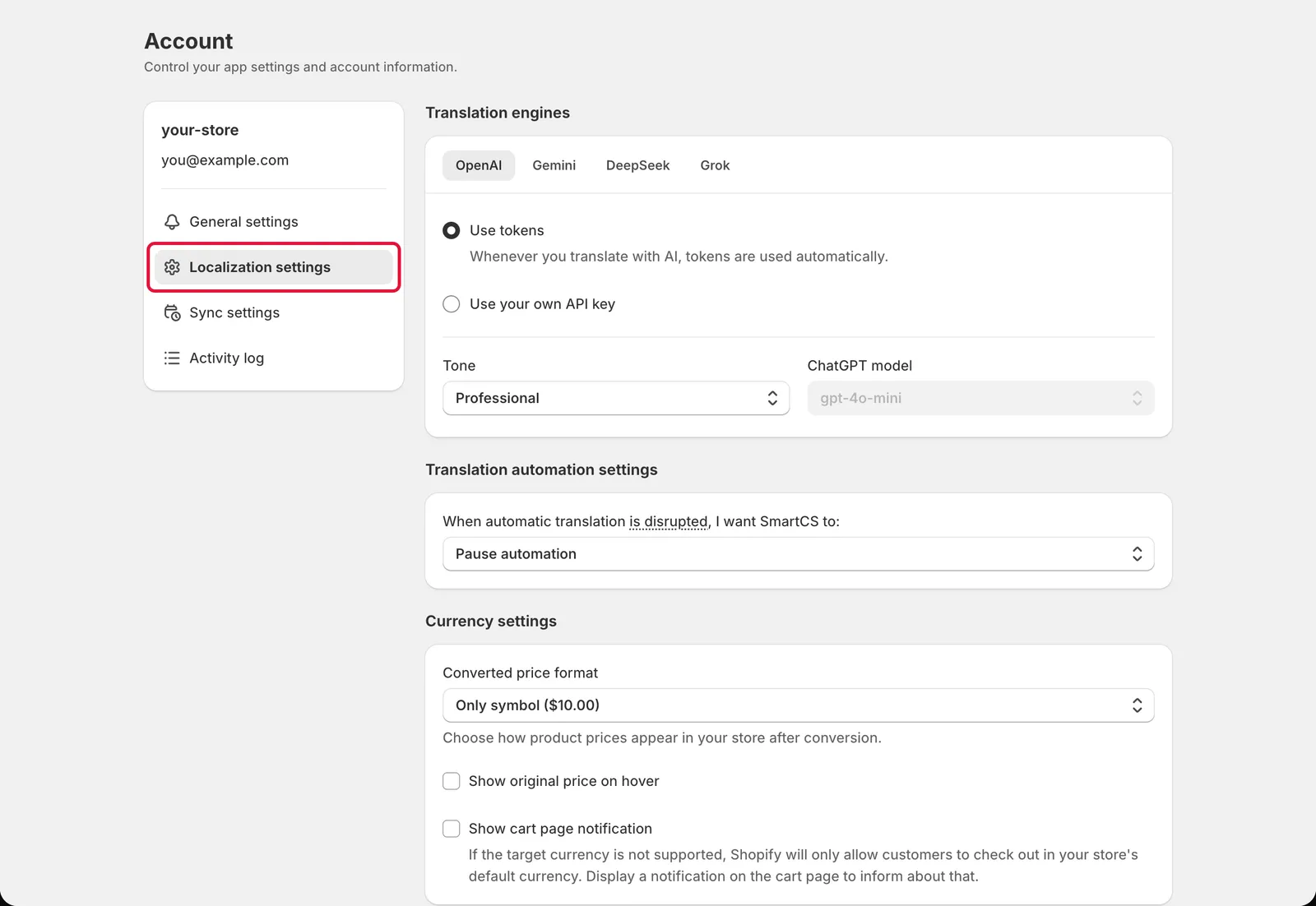
In SmartCS, open Compte et paramètres. In the Sections du compte menu, click Paramètres de localisation. The Moteurs de traduction card is at the top.
Choose an engine tab
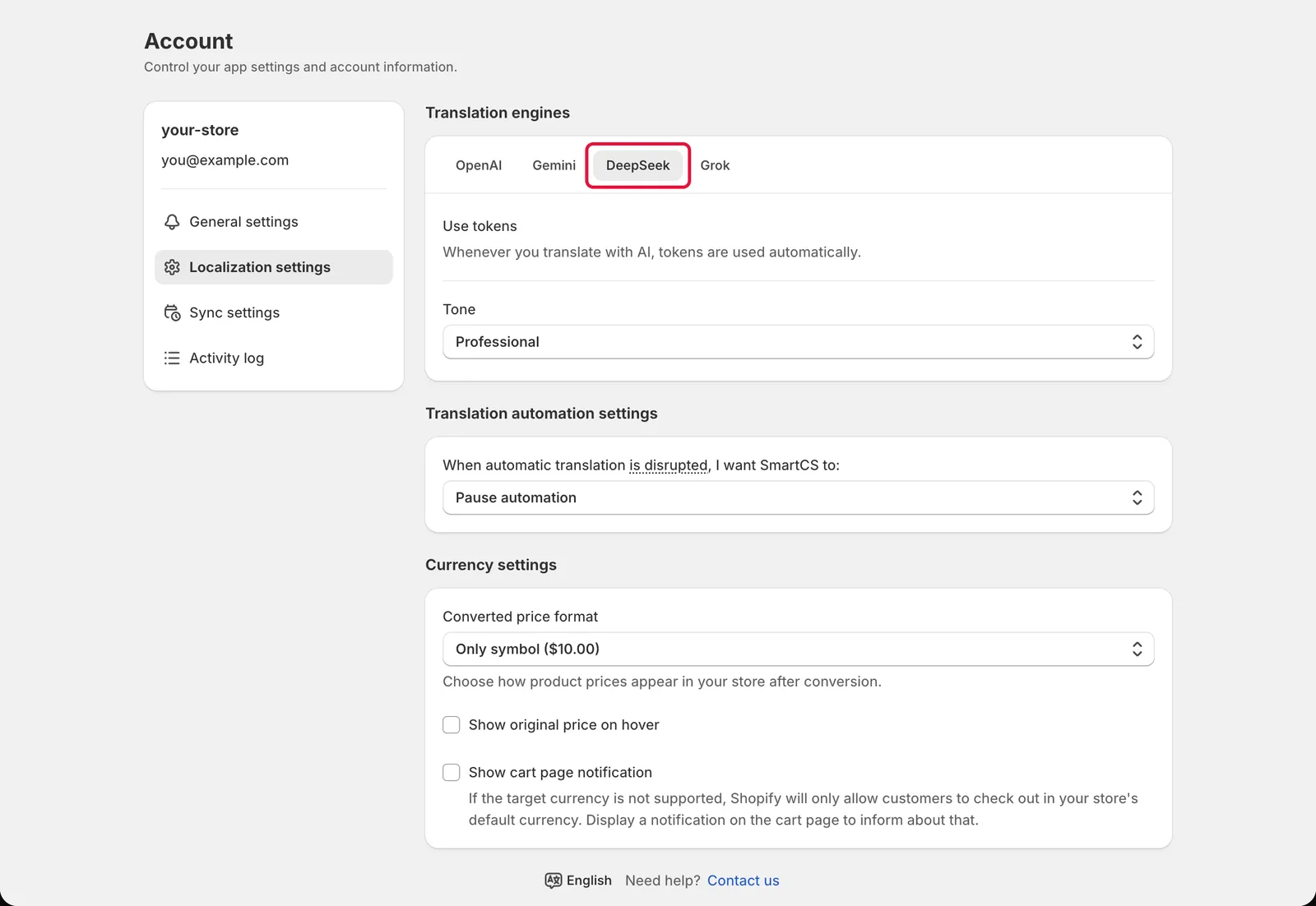
Click the tab of the engine you want to set, such as DeepSeek. If you have unsaved changes, the other tabs are off until you save or discard.
A plan that does not include Grok or DeepSeek has no tab for it. OpenAI and Gemini keep their tabs, with the own-key option locked.
Set the tone
Open Ton and choose Professionnel, Décontracté, Simple or Créatif. The tone is saved for that engine.
Use your own API key
Contactez-nous pour activer cette fonctionnalité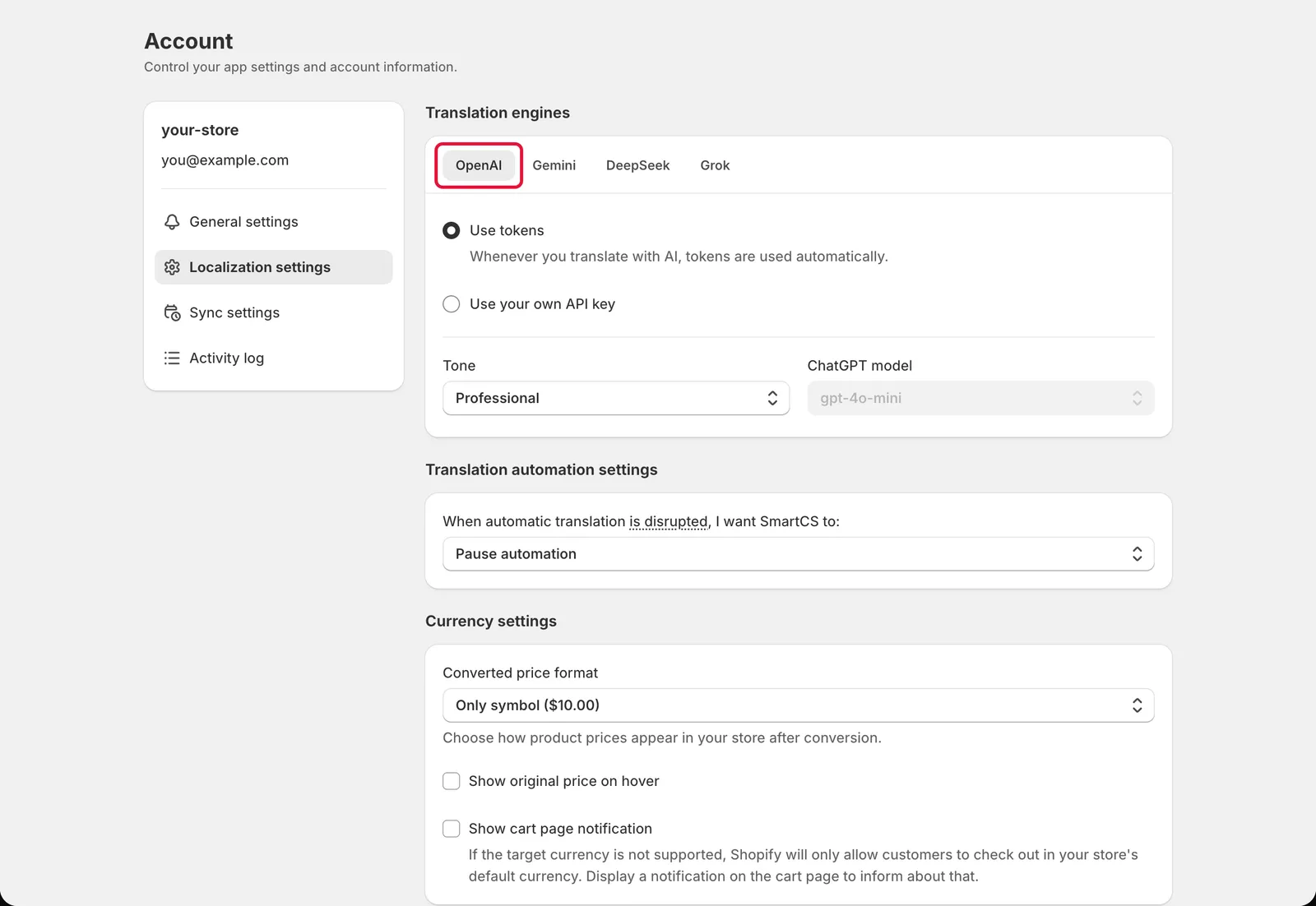
On the OpenAI or Gemini tab, choose Utiliser votre propre clé d'API. Paste your key in Clé d'API. The key is stored encrypted, and only its last four characters are shown afterwards. Runs on your own key do not use your tokens or monthly allowance.
You can then choose the model your key uses.
Save your changes
Click Enregistrer in the save bar. Then click Vérifier la clé to test a saved key. Check key and Remove key wait while you have unsaved changes.
Good to know
- To go back to tokens, click Supprimer la clé and confirm. Translations on that engine then use your AI allowance again.
- If your key stops working, a red banner at the top of the tab says why, for example that the key is out of credit. Runs that use the key cannot start until it works again.
- A locked option, such as Utiliser votre propre clé d'API on a plan without own keys, shows a note that says how to get it.
- The option shows a Verrouillé badge and the line "Translation with your own AI key : disponible sur demande." with a Nous contacter link. Click the link to ask for it. The caption under it says "La fonctionnalité « Translation with your own AI key » n’est pas encore activée pour votre boutique. Contactez-nous et nous la configurerons." If support cannot turn the option on yet, the line says "Pas encore disponible" with nothing to click.
Articles associés
Translate content with AI
Translate ticked items or a whole resource with an AI engine. Check the quote, add instructions and start the translation.
Edit translations manually
Open a resource in the translation editor, type or fix a translation field by field, use rich text, and save your changes.
Dernière mise à jour : 18 novembre 2026