Advanced currency settings
Change how converted prices look, choose your theme, and copy the code snippets that place the switcher and fix price formats.
Use the Advanced page to change how converted prices look and where SmartCS: Currency & Translate appears on your store. You usually set these options once.
Before you start
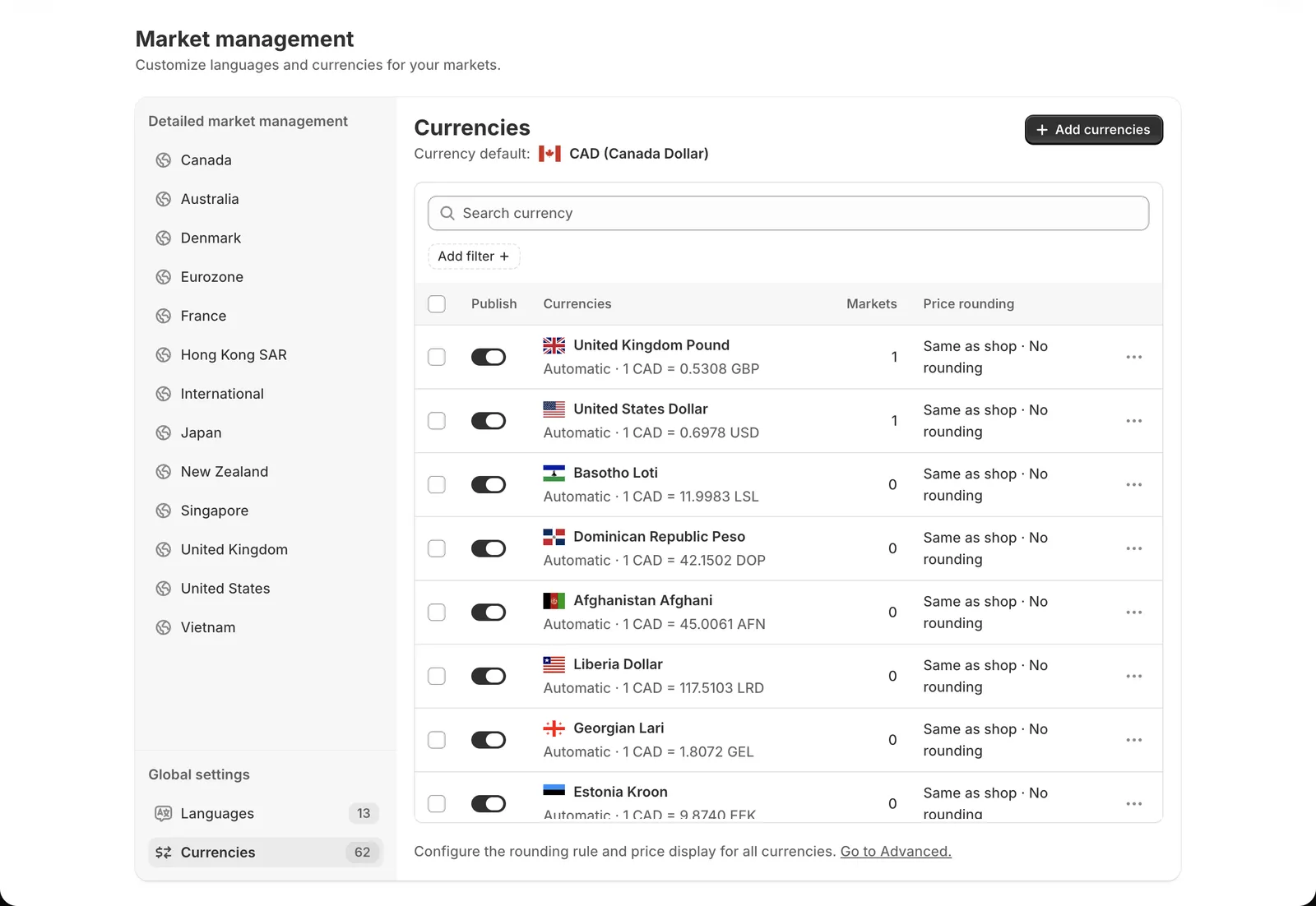
Add at least one currency first. See Add and publish currencies.
Open the Advanced page
Currency display
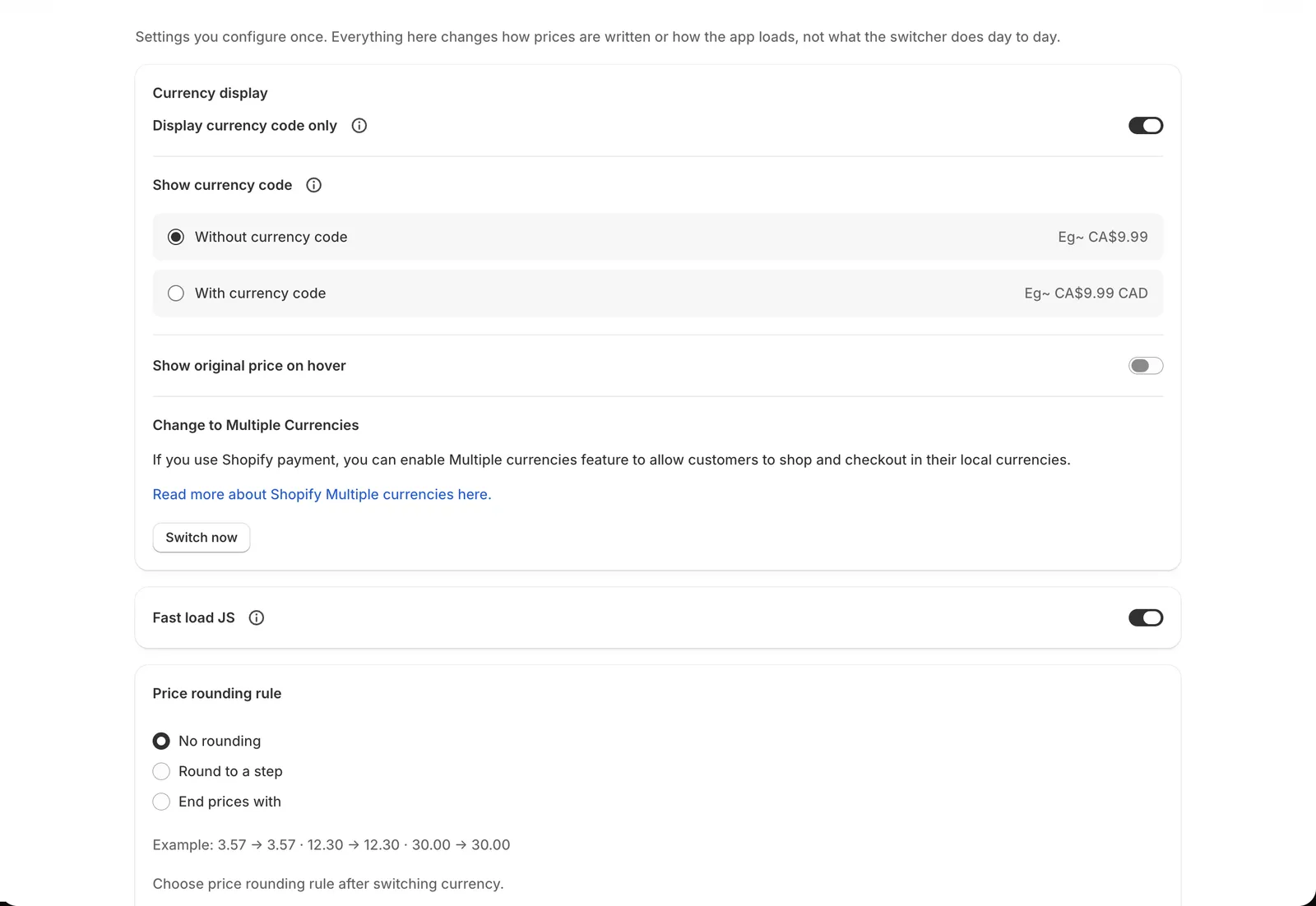
The Währungsanzeige section changes how converted prices appear.
- Nur Währungscode anzeigen: when on, the switcher list shows codes such as GBP. When off, it also shows the currency name. The switcher button always shows the code only.
- Währungscode anzeigen: choose Ohne Währungscode or Mit Währungscode. Each choice shows an example. It applies to prices that SmartCS converts. If your theme prints currency codes on its own prices, choose the option with the code so they match.
- Originalpreis beim Hover anzeigen: when on, shoppers can see the original price in your store currency when they point at a converted price.
Save your changes with Speichern in the bar at the top of the page. Select Verwerfen to undo them.
Choose the theme
Under Theme-Installation, pick the theme for your switcher from the list of your store themes. Your store's current theme is selected until you choose another.
Placement snippets
Erweiterte benutzerdefinierte Platzierung lets you choose exactly where things appear. Copy a snippet and paste it into your theme code where you want it.
- Platzierung der Währungsbox:
<div class="new-cs"></div>. It works when the Desktop or Mobile position of the switcher is set to Container (.new-cs). - Platzierung des Warenkorbhinweises:
<div class="scm-cart-banner"></div>. It is optional. Without it, the cart notification is placed in your cart automatically.
These snippets are fixed text. Copying them does not change any setting, so they never ask you to save.
Money format code
Währungsformat shows two lines of code: HTML mit Währungscode and HTML ohne Währungscode. Paste them into your Shopify admin under Settings, General, Currency formatting.
The app looks for the <span class=money> wrapper to find your prices. Without it, prices stay in your store currency. For the full steps, see Set up your money format.
Good to know
- Price rounding and the cart notification are on this page too. They have their own articles: Round converted prices and Cart notification.
- Your settings reach your online store after you save. The app publishes them for you.
Hinweis
If you switch to Multiple currencies mode, Shopify converts prices and some of these options stop applying, such as the money format, the original price on hover and the cart notification. See Multiple currencies mode and Switcher mode.
Verwandte Artikel
Unpublish or remove currencies
Hide a currency from your storefront with the Publish switch, or remove it completely, one currency at a time or several at once.
Cart notification for converted prices
Tell shoppers in the cart that prices are shown in another currency and which currency their card is charged in, with your own wording and colors.
Zuletzt aktualisiert: 18. November 2026