Glossary: always or never translate a term
Create glossary rules so a brand name stays as it is, or a term always gets the wording you choose, in the languages you pick.
Use the glossary to keep a brand name unchanged, or to make a term always use the wording you choose. The app follows your rules when it translates your content.
Kontaktieren Sie uns, um dies zu aktivierenNumber of glossary rules your plan holds, including rules that are turned off:
Free-Tarif: 0Before you start
- A plan with 0 rules shows Regel erstellen as disabled. Rules you made on a higher plan stay readable, and you can delete them, but rules past your plan's limit are no longer applied and cannot be edited.
- Rules do not change translations that already exist. See Apply your rules.
- Glossary rules cannot be imported or exported.
Steps
Open the glossary
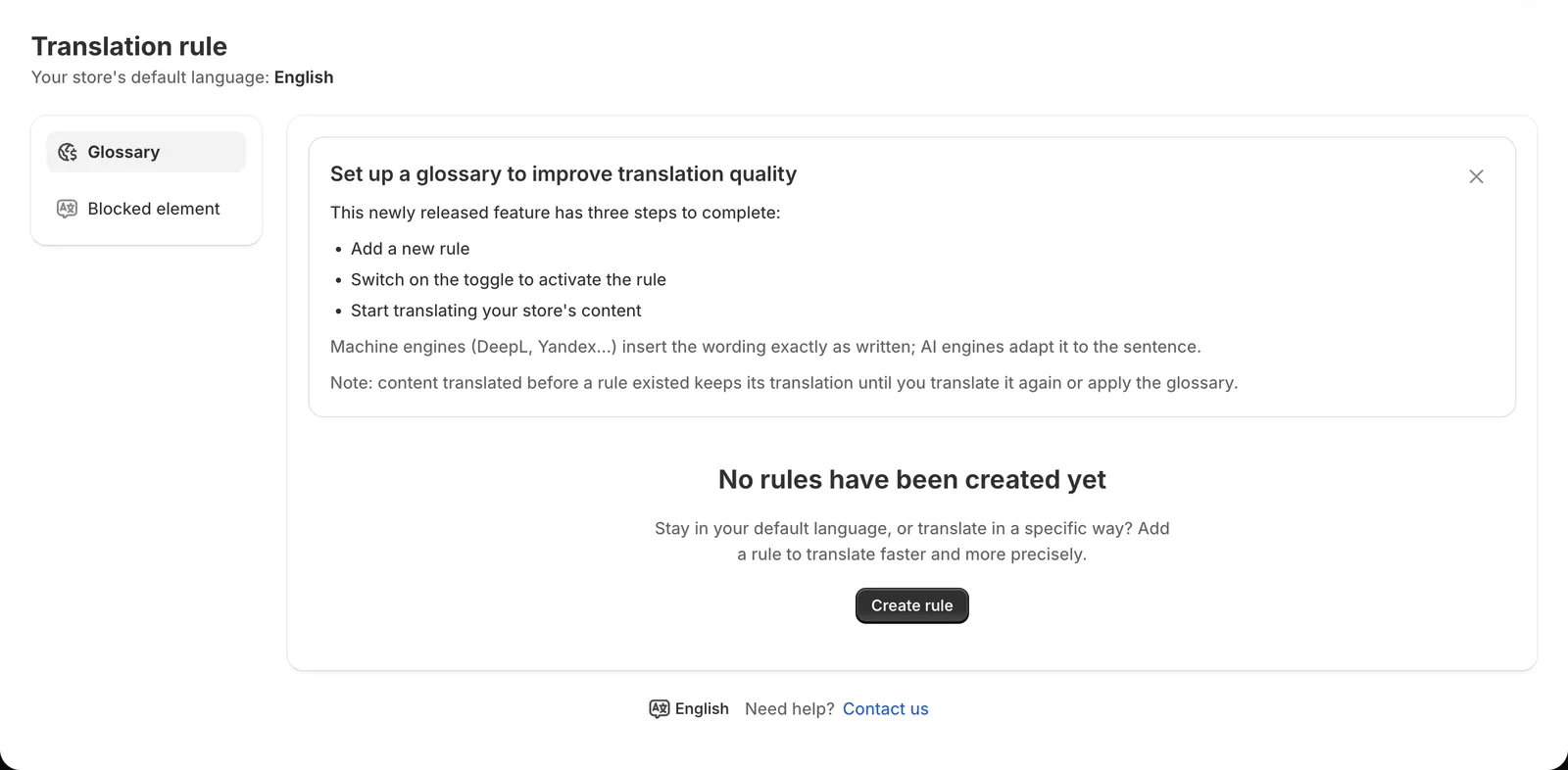
In SmartCS, open Inhaltsübersetzung. Under Erweitert, click Glossar. The page Übersetzungsregel opens on the Glossar tab.
Create a rule
Click Regel erstellen. A window opens with one row per rule. In Text, type the term as it appears in your store. A term can have up to 60 characters. Use Zeile hinzufügen to add up to 50 rows before you save.

Choose the rule type
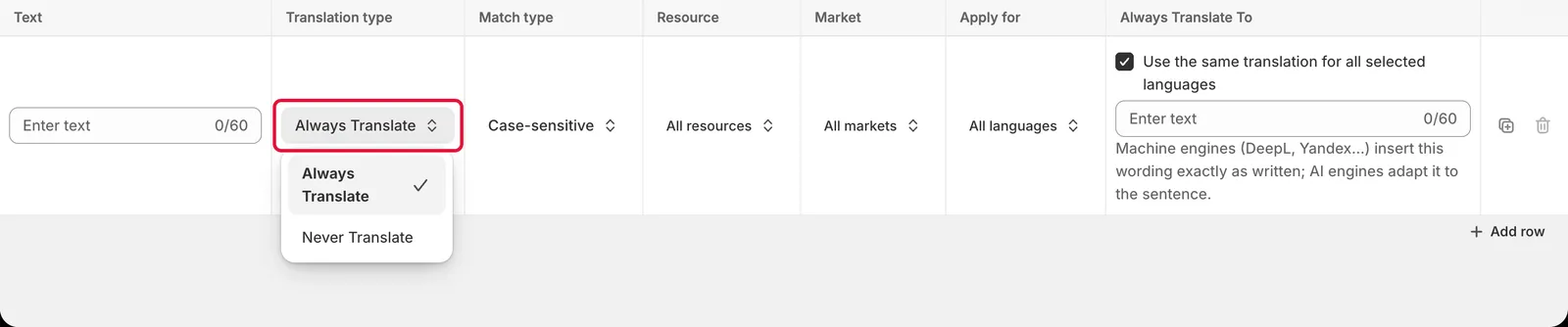
Open Übersetzungstyp and choose one:
- Immer übersetzen uses the wording you type under Immer übersetzen als. Tick Dieselbe Übersetzung für alle ausgewählten Sprachen verwenden to use one wording for all languages, or clear it to type one wording per language.
- Nie übersetzen keeps the term as it is in your original text.
Choose where it applies
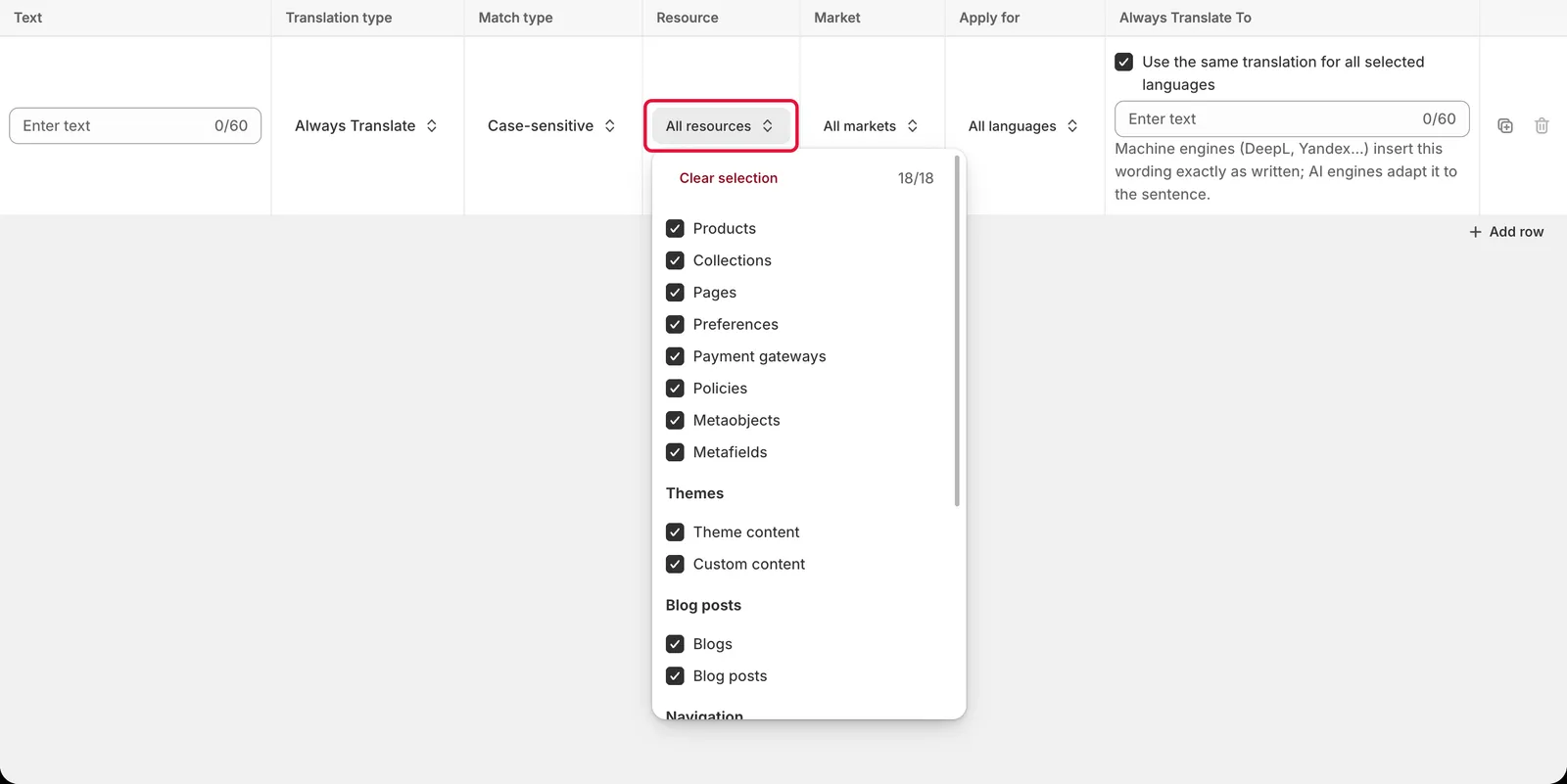
Übereinstimmungstyp is Groß-/Kleinschreibung beachten by default. Change it to Groß-/Kleinschreibung ignorieren if "Apple" and "apple" should both match. A rule matches whole words only. Then use Ressource, Markt and Anwenden für to limit the rule. By default it applies to all resources, markets and languages.
Save the rules
Click Speichern in the save bar. New rules are turned on.
Manage your rules
In the list, use the switch of a rule to turn it on or off. A rule only works while it is on. Pin a rule to keep it at the top, search with Regeln suchen, or tick several rules to turn them on or off, pin, edit or delete them together. Deleting a rule does not change translations you already made.
Apply your rules
A rule affects new translations. When the glossary has changed, a banner lists the languages that need it. Click Anwenden to redo the translations that break a rule. Translations you edited by hand, and translations in conflict with Shopify, are never changed. Applying can use your translation allowance.
Good to know
Hinweis
With Immer übersetzen, the translation engine is asked to use your wording and writes the sentence around it. Check the result in the editor. If it missed your wording, change the translation by hand or apply the glossary.
Verwandte Artikel
Search and replace in translations
Find a word across your store content and replace it in your translations, with a preview of every change before anything is saved.
Block elements from translation
Choose which fields are never translated, from SEO meta tags and URL handles to a single field in the editor, and remove a block later.
Zuletzt aktualisiert: 18. November 2026