Supported currencies
See which currencies SmartCS can convert your prices into, and how to search the list before you add one to your store.
See which currencies SmartCS can convert your prices into. The list lives in the dialog where you add currencies, so it is always the current list.
Before you start
You do not need to add anything to look at the list. Open the dialog, search, then close it with Annuller.
Steps
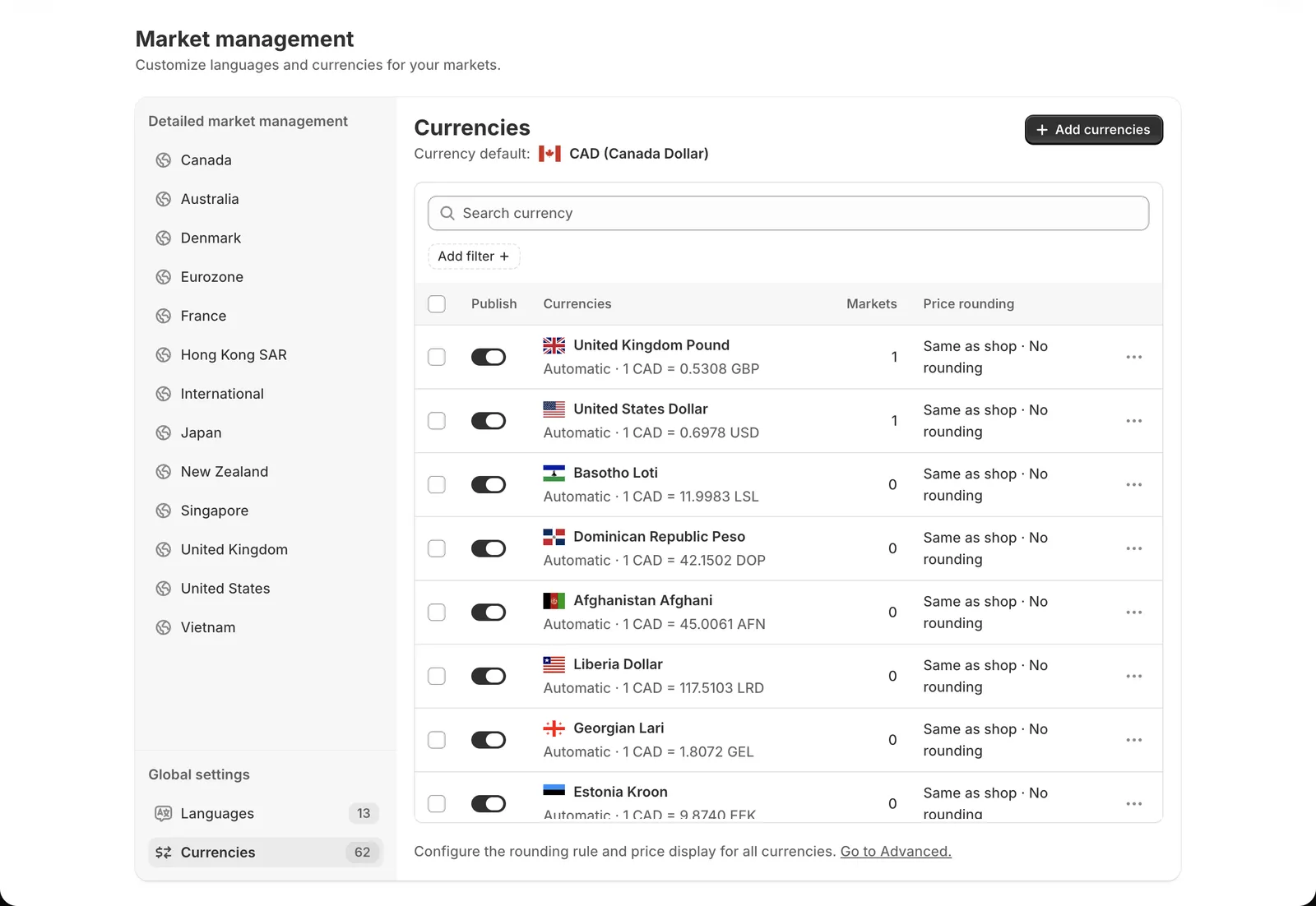
Open the Add dialog
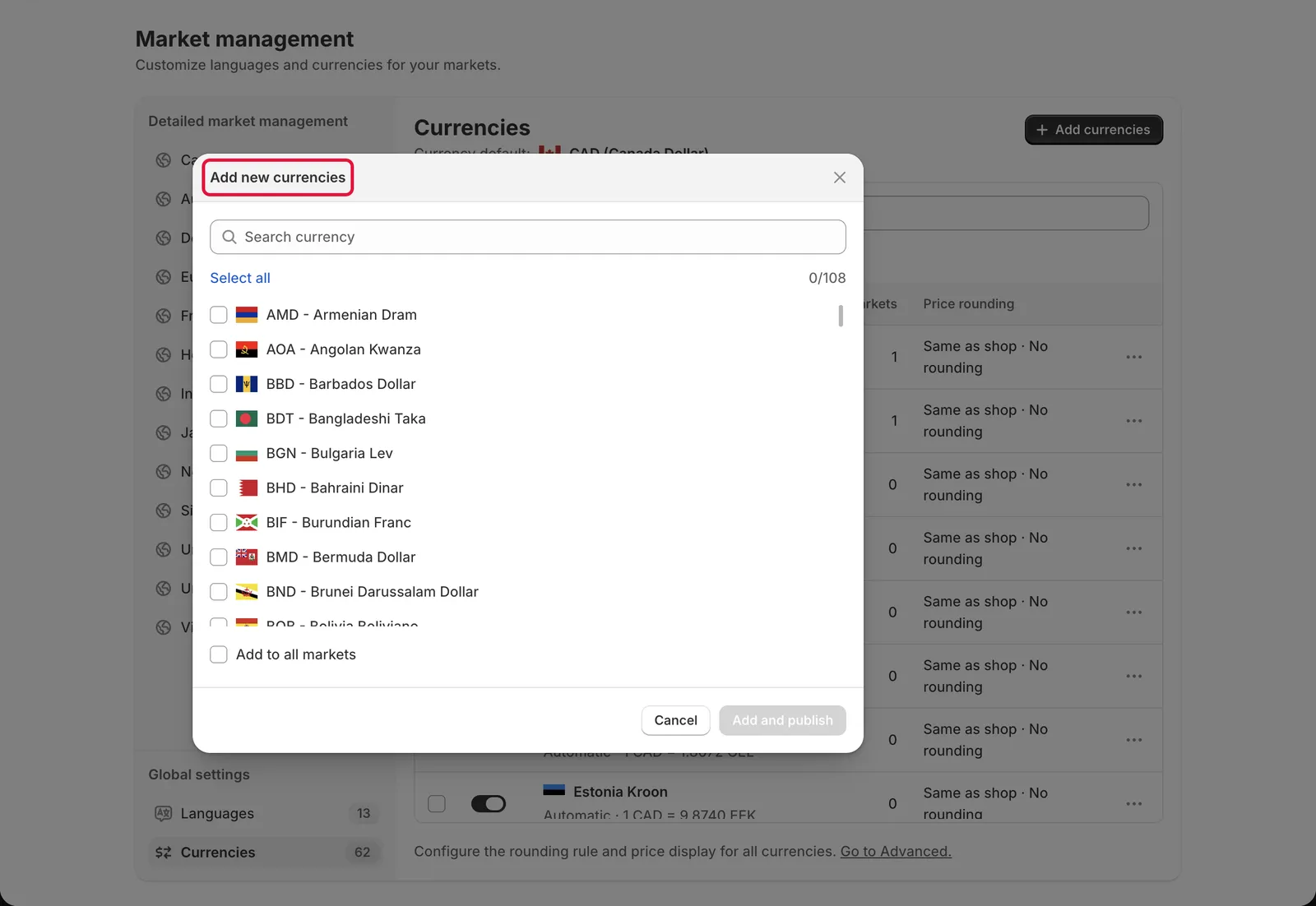
Click Tilføj valutaer. The Tilføj nye valutaer dialog lists each currency you can add, with a flag, its code and its name.
Search the list
Type a code or part of a name in Søg efter valuta. The list narrows as you type. Capital letters do not matter.
Close the dialog
Click Annuller to close the dialog without adding anything. To add a currency, follow Add and publish currencies.
Good to know
- If a currency is not listed, SmartCS cannot convert prices into it yet. A currency is listed only when it has an exchange rate. Rates refresh once a day.
- Your store currency is usually not in the list. Prices always convert from it.
- Currencies you already added are not in the list. You see them in the table on the Currencies page.
- The list is not limited by your plan. The number you can publish is.
- The app converts the prices shown on your storefront. Checkout is usually in your store currency, and Shopify decides this. See Multiple currencies mode vs Switcher mode and Cart notification for converted prices.
Your plan allows this many currencies, not counting your store currency:
Free-pakken: 3 valutaerTip
When no currencies are added yet, the Currencies page tells you how many are available to add.
Relaterede artikler
Add and publish currencies
Add currencies on the Currencies page so your storefront can show prices in more than your store currency. New currencies are published at once.
Exchange rates: automatic, manual or with a markup
Choose how SmartCS converts your prices into each currency: the automatic daily rate, a rate you type, or the automatic rate plus a markup.
Sidst opdateret 18. november 2026