Cart notification for converted prices
Tell shoppers in the cart that prices are shown in another currency and which currency their card is charged in, with your own wording and colors.
Turn on the cart notification to tell shoppers that the prices they see are converted, and which currency their card will be charged in. The notice appears in the cart, above the cart items.
Before you start
Add at least one currency besides your store currency. See Add and publish currencies. The notice only appears when a shopper views prices in a currency other than your store currency.
Steps
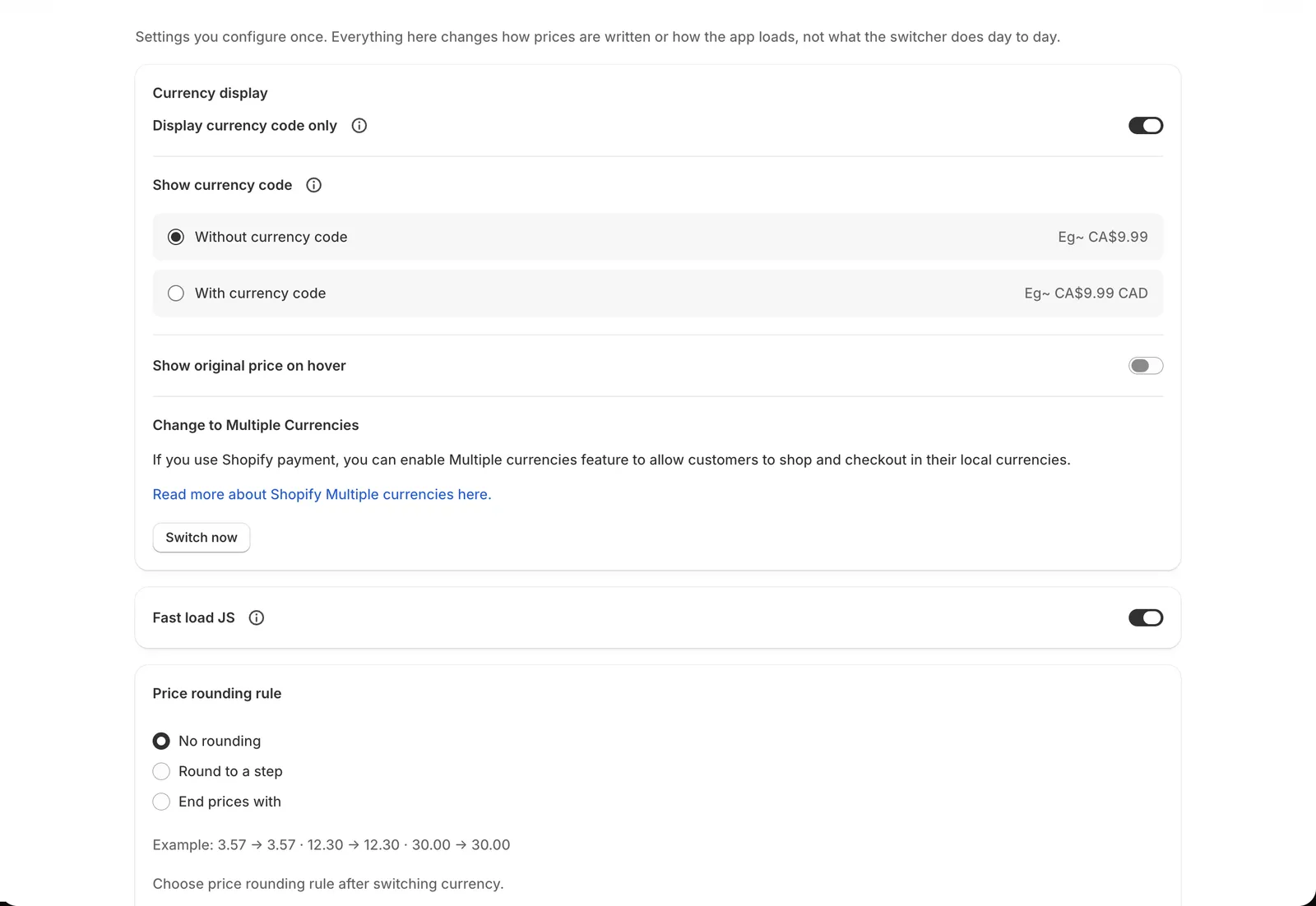
Turn on the notice
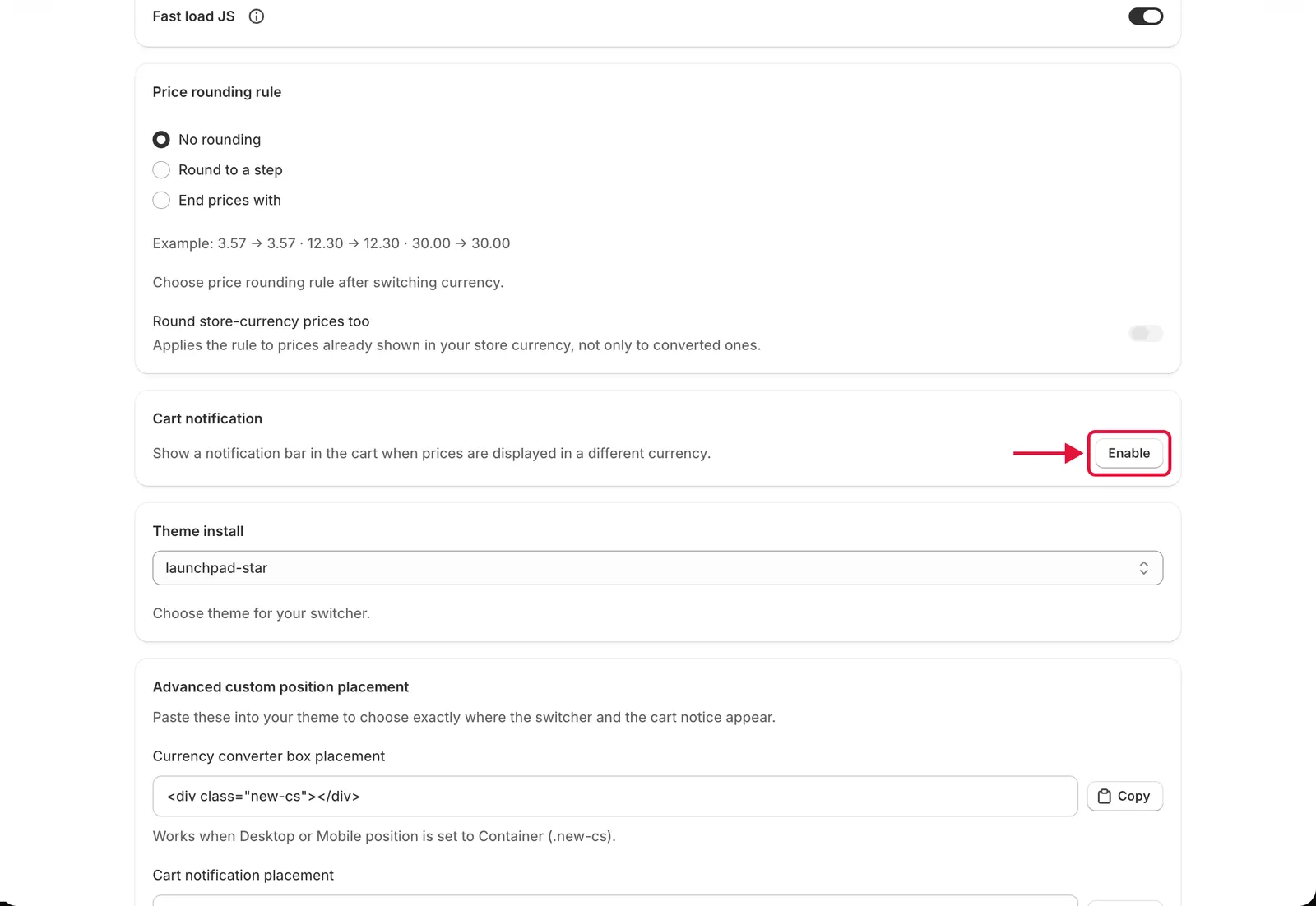
Find the Kurvmeddelelse section. If it shows Aktivér, select it. If it shows Deaktiver, the notice is already on. When it is on, the message and color fields appear.
Edit the message
In Besked, edit the text. The box starts with the built-in sentence. The limit is 300 characters.
Choose the colors
Choose Tekstfarve and Baggrundsfarve. Check that the text is easy to read on the background.
Check the preview
Check the Forhåndsvisning below the fields. It shows the sentence as shoppers will see it.
Save the notice
Select Gem in the bar at the top of the page.
Placeholders
You can use these placeholders in the message. The app replaces each one with the real value.
| Placeholder | Replaced with |
|---|---|
{CURRENT_CURRENCY} | The currency the shopper is viewing |
{STORE_CURRENCY} | The currency the card is charged in |
{EXCHANGE_RATE} | How many units of the viewed currency one unit of the charged currency buys, with 3 decimals |
The built-in sentence is:
Priser vises i {CURRENT_CURRENCY}. Dit kort trækkes i {STORE_CURRENCY}.
If you clear the box and save, the built-in sentence is used. The text is shown as plain text, so HTML tags do not work.
If you type a placeholder the app does not know, the app warns you under the box. It still saves, and the shopper sees the text exactly as you typed it.
Where the notice appears
The app places the notice in the cart page, in the cart drawer, and in the add-to-cart pop-up of themes that have one. To choose the spot yourself, paste the cart notification placement snippet into your theme. It is on the same Advanced page. See Advanced currency settings.
Good to know
- New stores start with the notice on. Select Deaktiver and save to turn it off.
- It appears only when the shopper views a currency other than your store currency.
- It does not appear in Multiple currencies mode, because Shopify Markets handles prices there. See Multiple currencies mode and Switcher mode.
Bemærk
If your message uses {EXCHANGE_RATE} and the app has no rate for the viewed currency, that placeholder is left empty. Prefer wording that still reads well without it.
Relaterede artikler
Advanced currency settings
Change how converted prices look, choose your theme, and copy the code snippets that place the switcher and fix price formats.
Multiple currencies mode vs Switcher mode
Learn how Switcher mode and Multiple currencies mode price your store, what each one changes for shoppers, and how to switch between them in the app.
Sidst opdateret 18. november 2026