Re-use translations between markets
Copy the translations of one market into another market for the same language, without translating the same texts again.
Copy the translations of one market into another market, so you do not write the same texts twice. Свяжитесь с нами, чтобы включить эту функцию
Before you start
- At least one other market must have its own translations in the language you pick.
- Translation edits must be on for that language.
- You work on one language at a time.
- Market translations must be switched on for your store. If they are switched off for now, you can read them but not copy them. The page then shows this message: Редактирование переводов для рынков пока отключено. Вы можете просматривать их, но не редактировать.
If no market qualifies, the button does not appear. If you only use the default translation, there is nothing to copy.
Steps
Choose the target market
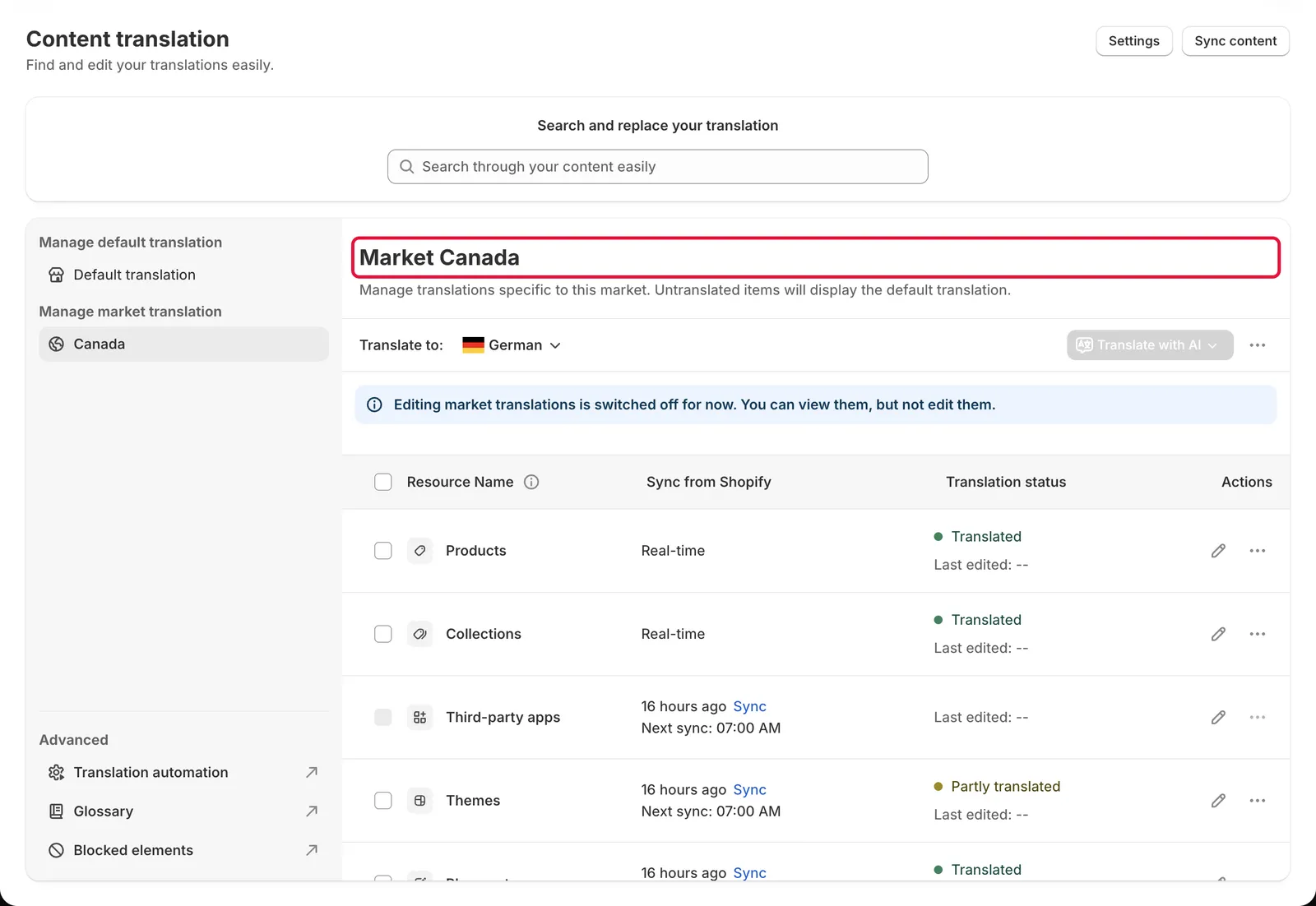
Open Перевод контента. In the left column, under Управление переводом рынка, select the market that should receive the translations.
Pick the language
In Перевести на:, pick the language.
Choose what to copy
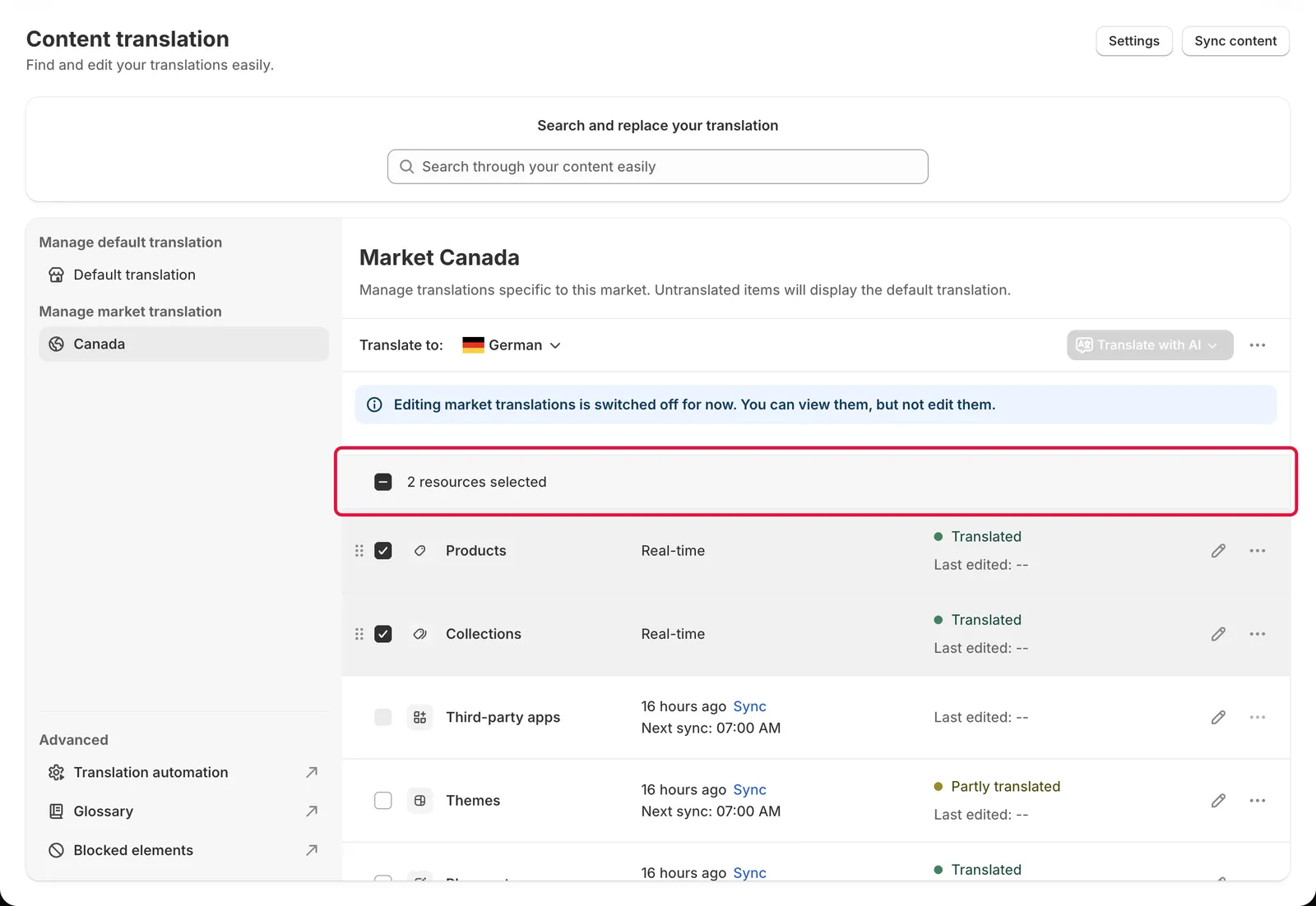
To copy only some content, tick rows in the Resources table. If you tick nothing, all resources are copied.
Open the re-use dialog
Select Использовать существующие переводы. It sits next to Перевести с помощью ИИ.
Choose the source market
Under Копировать с, choose the market to copy from. Each market shows how many items and fields it has and when it was last edited.
Decide on machine translations
Tick Также заменить машинные переводы на рынке «this market» if you also want to replace machine translations. Leave it off to fill only the empty texts.
Start the copy
Select Использовать.
What happens next
A message tells you how many translations were copied. A large copy runs in the background and shows Копирование запущено. You can follow it in Task progress.
Copied translations become the market's own. They do not change when the source market changes.
A banner can follow the copy:
- Translations you or your team wrote are never replaced. The banner counts the ones that were kept.
- A text that changed in Shopify is skipped. Open it in the editor and resolve the conflict.
Good to know
If market translations are not turned on for your store, the button is disabled and a Заблокировано label appears next to it. You can still read them.
When no other market has translations in this language, the dialog says: Пока ни у одного другого рынка нет собственных переводов на этом языке.
Похожие статьи
Manage a market: regions, domains, languages, currencies
See one market's regions, domains, languages and currencies, add languages and currencies to it, and open its translations.
Add and publish languages
Add a language to your store, translate it, then switch it on with Publish so shoppers can see it.
Последнее обновление: 18 ноября 2026 г.