The switcher or a currency doesn't show
Go through four checks, in order, to find why the switcher is missing from your storefront, then fix a missing currency or language.
Use this checklist when shoppers cannot see the switcher on your store. Go in order, and test your storefront after each fix.
Check these four things
Check the app embed
Without the app embed, shoppers see no switcher and no converted prices. Open the Панель управления page. The Встраивание приложения status must read Включено. If it reads Отключено, click Открыть редактор темы, turn on Smartify Currency, and save. See Turn on the SmartCS app embed.
Check who can see it
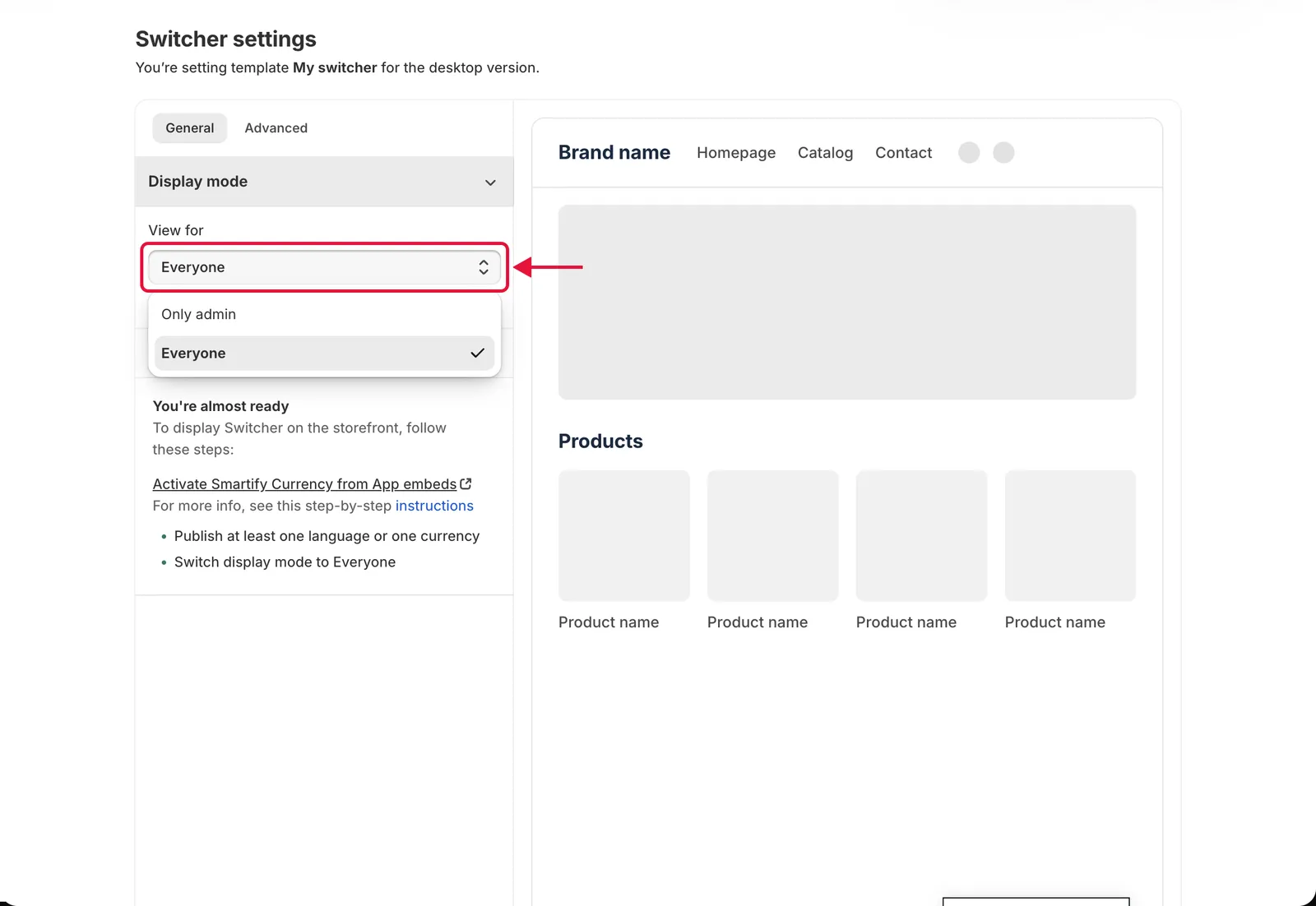
In Настройки переключателя, stay on the Основное tab. In the Режим отображения section, check Показывать для. A store installed today starts with Все, but a reset on this tab sets it back to Только администратор. With Только администратор, shoppers get no switcher and no price conversion, and you see the switcher only in the theme editor. If it is set to Только администратор, choose Все and click Сохранить. See Preview the switcher, choose who sees it, or reset.
Check the live theme
The app embed is saved in one theme. The link in the app opens your live theme, the one that is published. If you turned the embed on in a copy or in an older theme, it is still off in the live theme. After a theme change, turn the embed on again. The SmartCS Switcher block does not move to a new theme either. If your switcher uses Встроен в страницу, it appears in a corner until you add the block there. See Add the switcher as an app block.
Check speed and optimizer apps
Some speed apps remove a script from the page and add it again later, or run it more than once. The switcher is built to survive this: it mounts once and does not show twice. If it is still missing, turn the optimizer off for a moment and reload your store. If the switcher then appears, the optimizer is the cause, so check its settings for the SmartCS script.
A currency is missing
If the switcher shows but a currency does not, check these causes:
- Unpublished. Turn on the Публикация switch for the currency. See Unpublish or remove currencies.
- No rate. A currency with no exchange rate is left out. The table shows Курса пока нет for it.
- Over your plan limit. If your plan allows fewer currencies than you published, the extra ones are hidden from your storefront and show the badge Сверх лимита. Unpublish or remove some currencies.
- Multiple currencies mode. The switcher then lists the currencies Shopify has enabled for your store, not the list in the app. See Multiple currencies mode vs Switcher mode.
- Only one currency. The switcher shows currency only when 2 or more currencies are enabled. If Элемент для показа is set to currency only, two languages do not help. That setting is on the Переключатель tab (button) and the Селекторы tab (list that opens).
A language is missing
- Not published. Publish the language. See Add and publish languages.
- Only one language. The switcher shows language only when 2 or more are published. The preview in Настройки переключателя says so. If Элемент для показа is set to language only, two currencies do not help. Check both places: the Переключатель tab (button) and the Селекторы tab (list that opens).
- Not in this market. Adding a language does not choose which market or domain shows it. Shopify Markets decides that.
If the lists that Элемент для показа includes have one entry each, in the Переключатель tab and in the Селекторы tab, no element is left to draw. The switcher then has nothing to show and stays hidden.
Похожие статьи
Storefront still shows the original language
Find out why your store still shows the original text after you translated it, and check each possible cause in order.
Common errors and what they mean
Look up the error messages you can meet in SmartCS, what each one means, and what to do to fix it.
Последнее обновление: 18 ноября 2026 г.