Unpublish or remove currencies
Hide a currency from your storefront with the Publish switch, or remove it completely, one currency at a time or several at once.
Hide a currency from your storefront, or remove it completely. Unpublish a currency when you may want it back with the same settings. Remove it when you no longer need it.
Before you start
Your store currency cannot be hidden or removed. It is usually not in the table, because prices convert from it.
Unpublish a currency
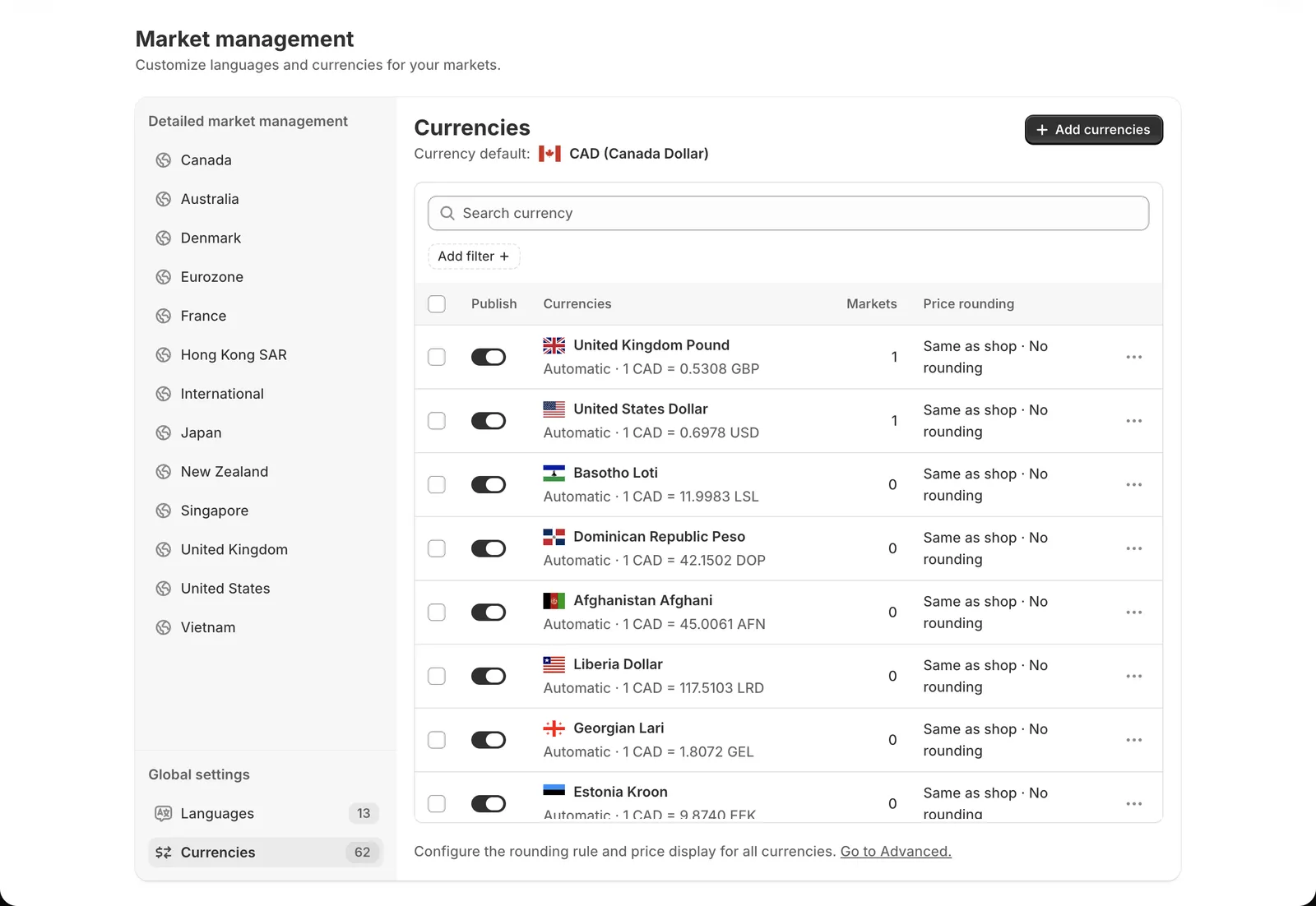
Turn off the switch
In the Publicar column, turn off the switch on the row of the currency. The app shows Publicação da moeda cancelada.
Unpublish several at once
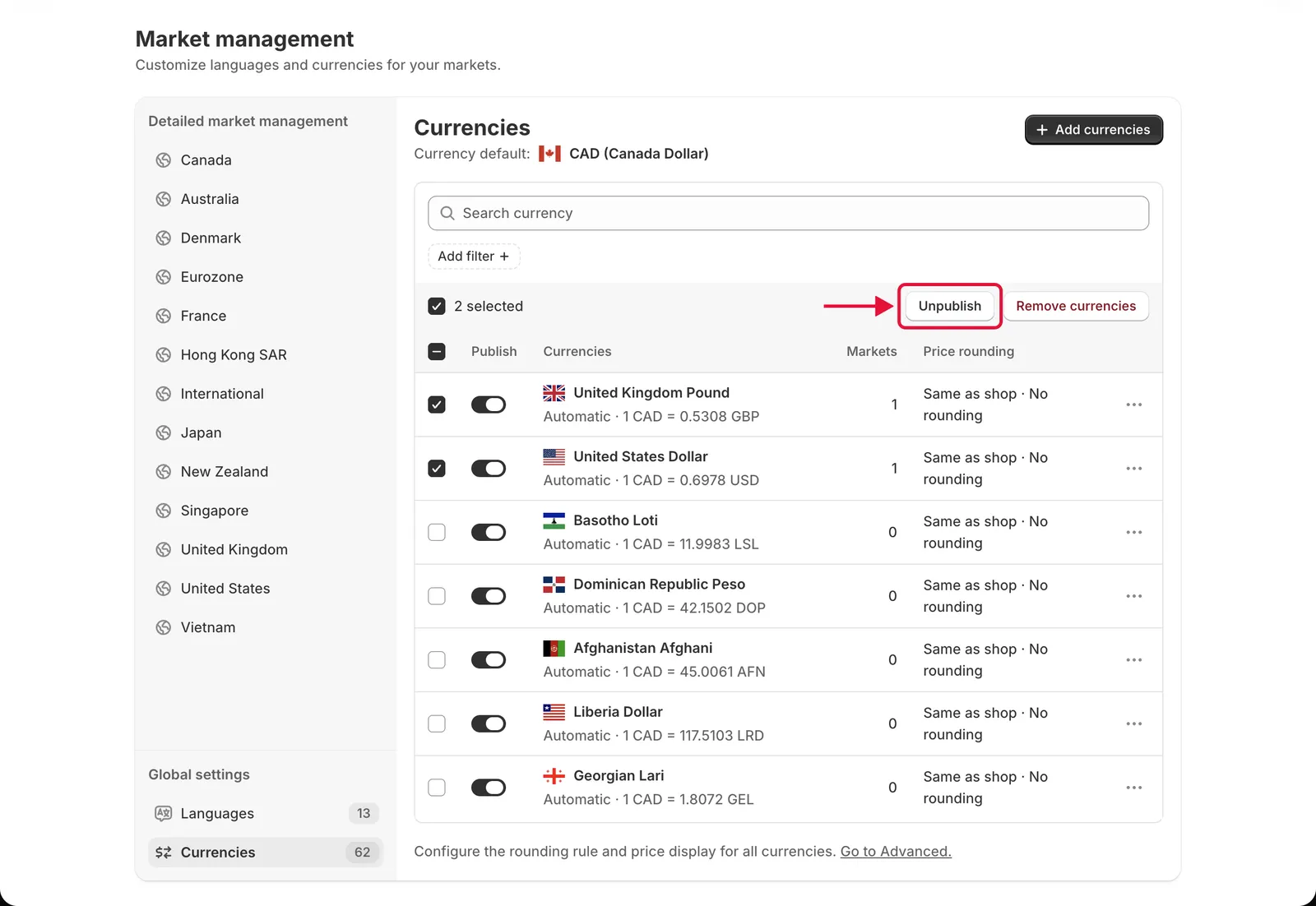
Tick the rows of the currencies. Click Cancelar publicação in the bar above the table.
An unpublished currency stays in the table with its exchange rate, format and rounding. Turn the switch on again to publish it. It does not count toward the limit of your plan, so unpublishing also frees a place:
Plano Free: 3 moedasRemove a currency
Choose Remove
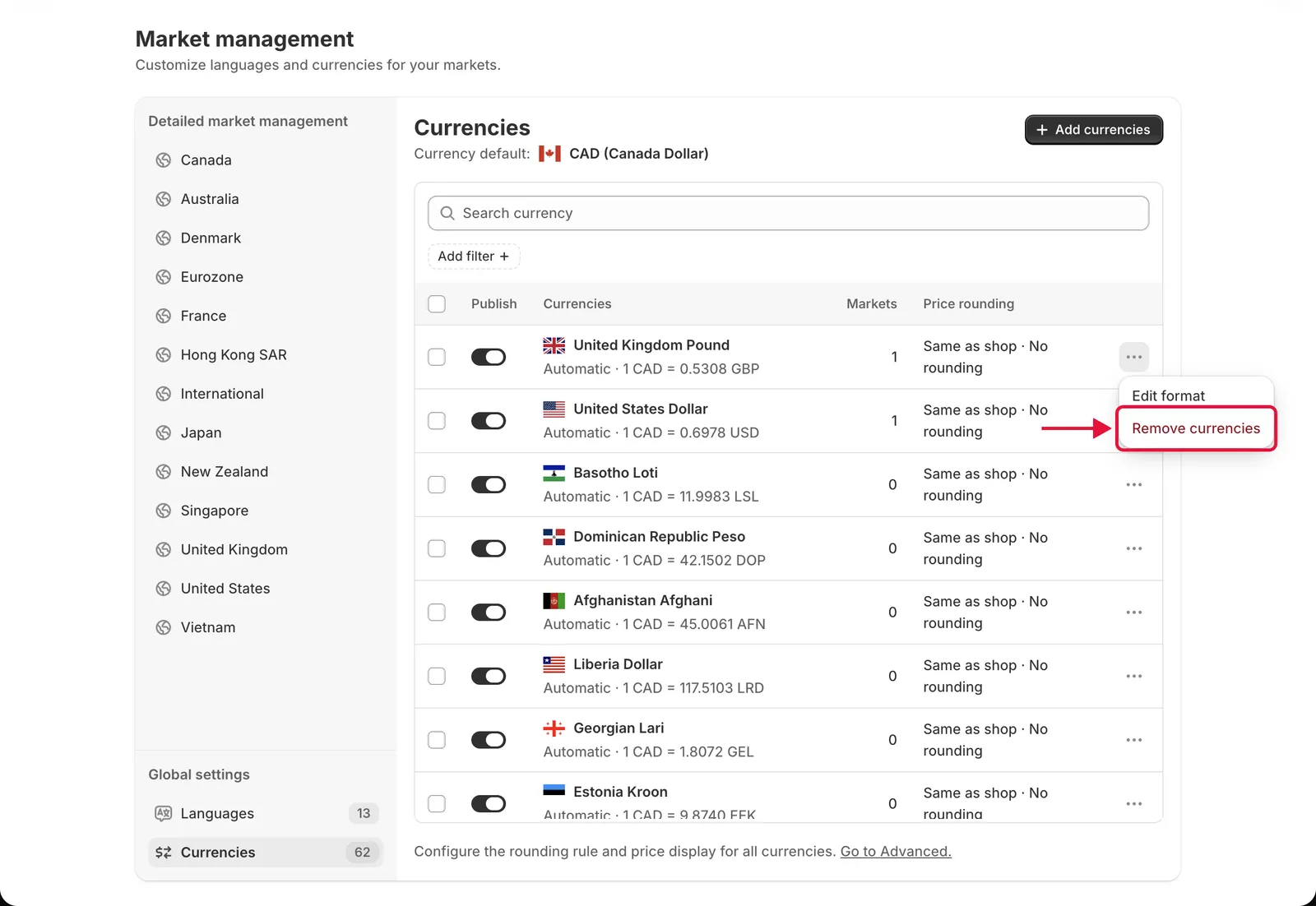
Open the actions menu at the end of the row and click Remover moedas. You can also tick several rows and click Remover moedas in the bar above the table.
Read the dialog
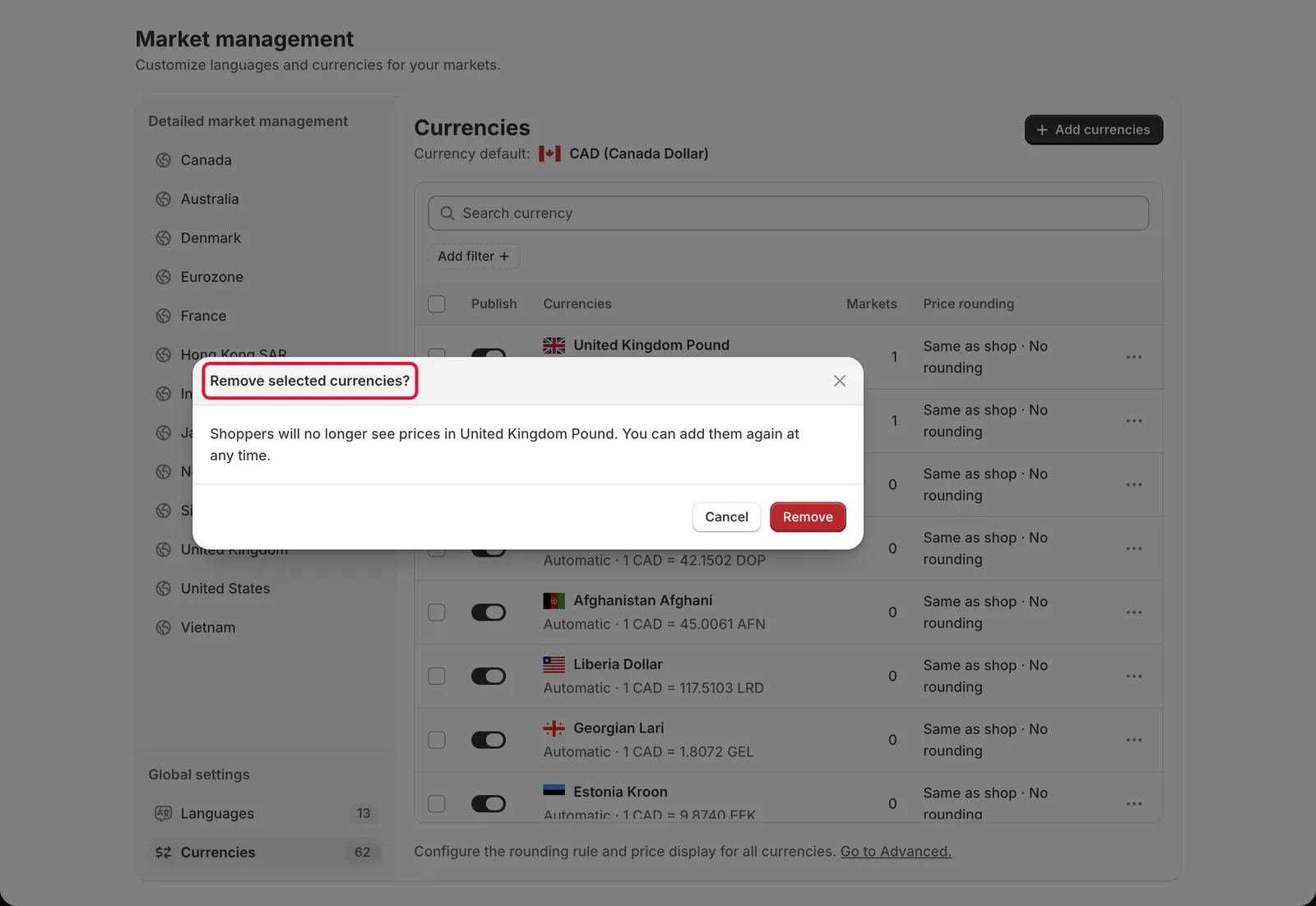
The dialog Remover as moedas selecionadas? lists the currencies. It says shoppers will no longer see prices in them.
Confirm
Click Remover. The app shows Moedas removidas.
Good to know
- Removing a currency also deletes the exchange rate, format and rounding you set for it. If you add it again, it starts with the defaults. See Add and publish currencies.
- A currency marked Acima do limite is hidden from your storefront. Your store can show fewer currencies than you published. Its switch is off and locked. Remove a currency to free a place, and the app shows the oldest hidden currency again.
- Remove is always available. The Publicar switches and Cancelar publicação are turned off while your store is in Multiple currencies mode. See Multiple currencies mode vs Switcher mode.
Aviso
Remove deletes the settings of a currency. You can add the currency again, but not its settings. Use the Publicar switch instead when you may want the currency back with its settings.
Artigos relacionados
Round converted prices
Round converted prices to a clean step or to an ending such as .99, for your whole store or for one currency, and check an example before you save.
Advanced currency settings
Change how converted prices look, choose your theme, and copy the code snippets that place the switcher and fix price formats.
Última atualização: 18 de novembro de 2026