Track background tasks
Follow translations and other background tasks in the Task progress panel. Cancel, restart, retry or resume a task.
Open the Task progress panel to see what SmartCS is doing in the background and to act on a task. Translations, deletions, glossary changes and other bulk actions all run as tasks.
Before you start
The panel has nothing to show until a task exists. Start one, for example by translating with AI.
Steps
Find the task bubble
While a task exists, a round bubble sits in a corner of the app. It shows how many tasks are completed, or that tasks need attention. Drag the handle (Mover progresso das tarefas) to move it to another corner. The bubble is not shown on the pricing, onboarding and billing pages.
Open the panel
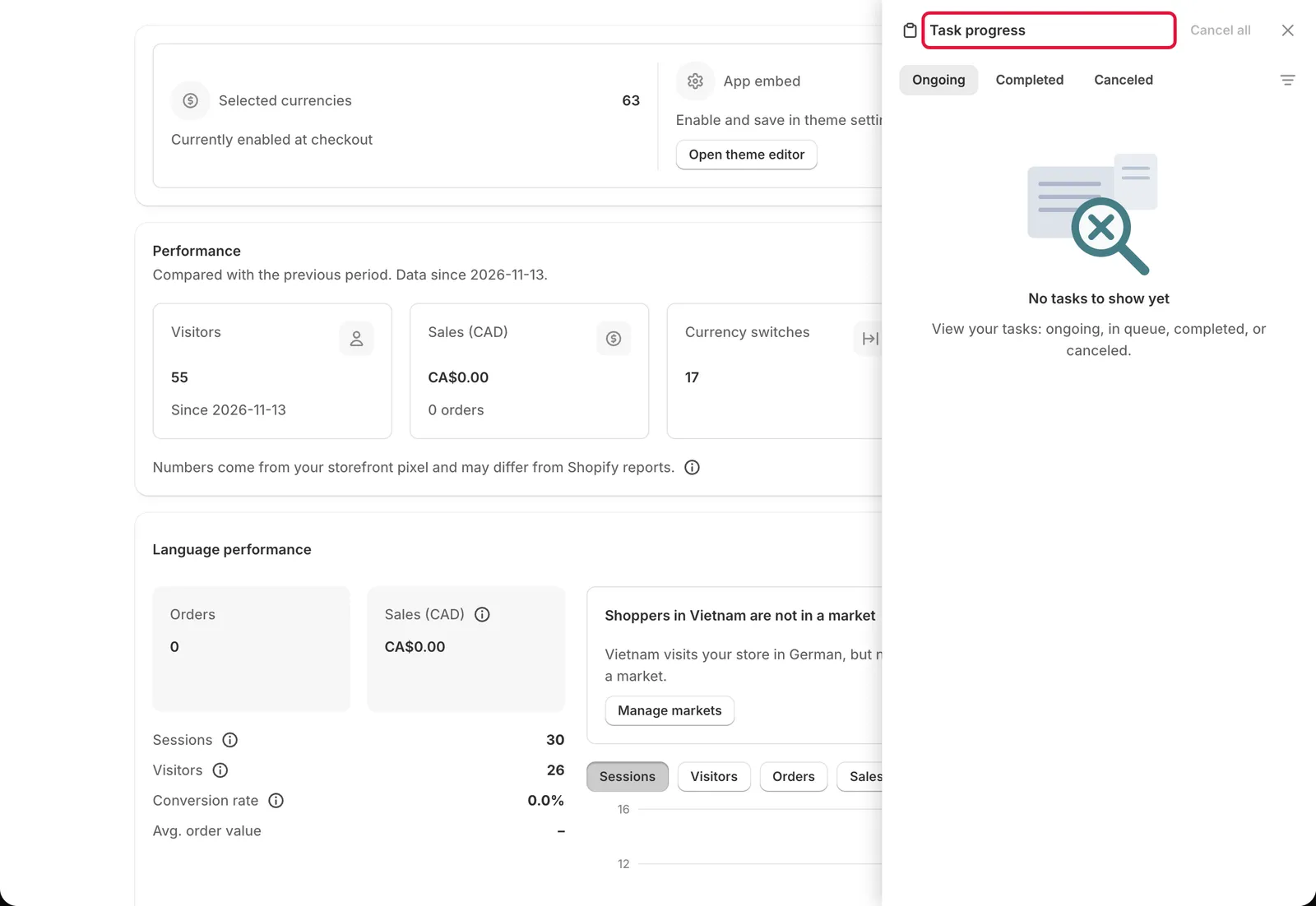
Click the bubble (Abrir progresso das tarefas). The Progresso das tarefas panel opens on the side. On a phone it opens from the bottom. Press Escape or click outside it to close it.
Switch tabs and filter
Use the tabs Em andamento, Concluídas and Canceladas. Waiting tasks are under Na fila on the first tab. Click Filtrar por to show only some kinds of task, such as Traduzindo or Excluindo.
Read a task
Each row shows the action, the language, the market, the resource and the status. A running task has a progress bar and the time left. A task made by a rule says Automação.
Act on a task
Use the buttons on the row:
- Cancel, the X on a running, waiting or paused task. The panel closes, then a dialog, Confirmar cancelamento, asks you to confirm.
- Reiniciar on a canceled task.
- Tentar novamente os que falharam on a task that finished with errors.
- Retomar on a paused task.
- Editar tradução, the pencil on a finished task, opens the translation editor.
- Dispensar, the X on a finished task, removes it from the list.
To stop everything, click Cancelar todas at the top of the panel.
Good to know
- A paused task says why. Reasons are your monthly quota, your AI tokens, a plan that does not cover the task, or your own API key that stopped working. Retomar stays off while the monthly quota is used up.
- A task with failed items shows how many failed and, for engine problems, why. Retry them later, or try another engine.
- The footer tells you if the queue is running smoothly, slow or in error. It shows only while a task is running.
- If a task cannot be restarted, the panel says so.
- Actions that need a task to be running or finished fail with a short message, such as Esta tarefa não está mais em execução..
Artigos relacionados
Pause automation or switch to the free engine
Choose what automatic translation does when your monthly quota runs out: pause, or keep going with the free engine.
Set up the switcher on your store
Choose who sees the switcher and which template it uses, save your changes, and turn on the app embed so shoppers can pick a currency and a language.
Última atualização: 18 de novembro de 2026