Activity log
Read a list of the changes made to your languages, currencies, switcher, translations and plan, and filter it by type and date.
Use the Activiteitenlogboek to see what changed in your SmartCS settings and translations, and when.
What the log shows
Each line is one sentence with its date and time below it. Times are in your store's time zone. The log lists, for example:
- languages added, removed, published or unpublished;
- currencies added, removed or published, and changes to exchange rates, rounding and formats;
- translations edited, approved or made with an engine, and content synced from Shopify;
- changes to the switcher, markets, glossary rules and automation rules;
- plan changes, and errors with their code.
The newest line is first. You cannot edit or delete a line.
Steps
Open the Activity log
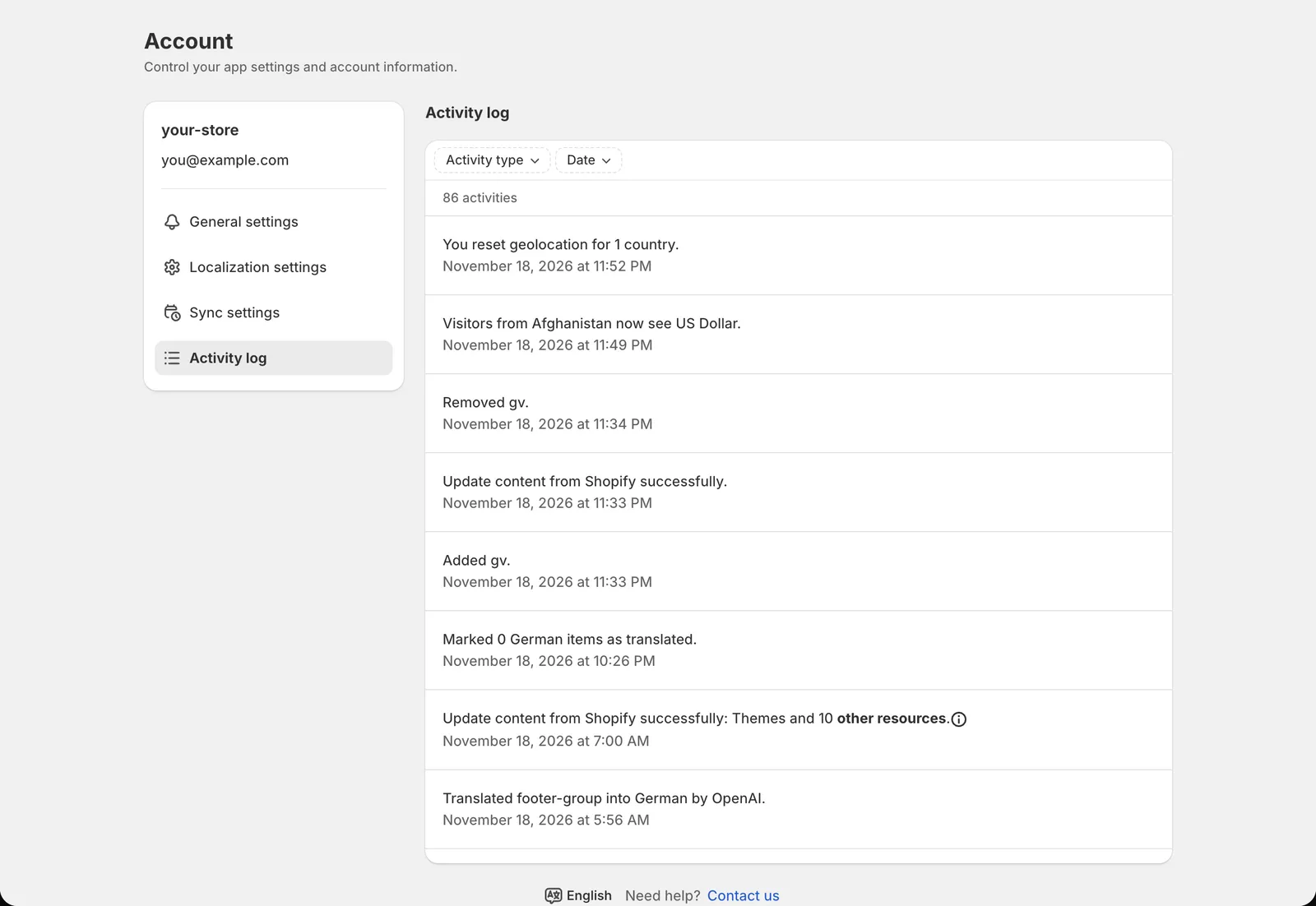
In SmartCS, open Account en instellingen. In the Accountonderdelen menu, click Activiteitenlogboek. The page shows the number of activities and the first lines. Click Meer laden to see older lines.
Filter by type
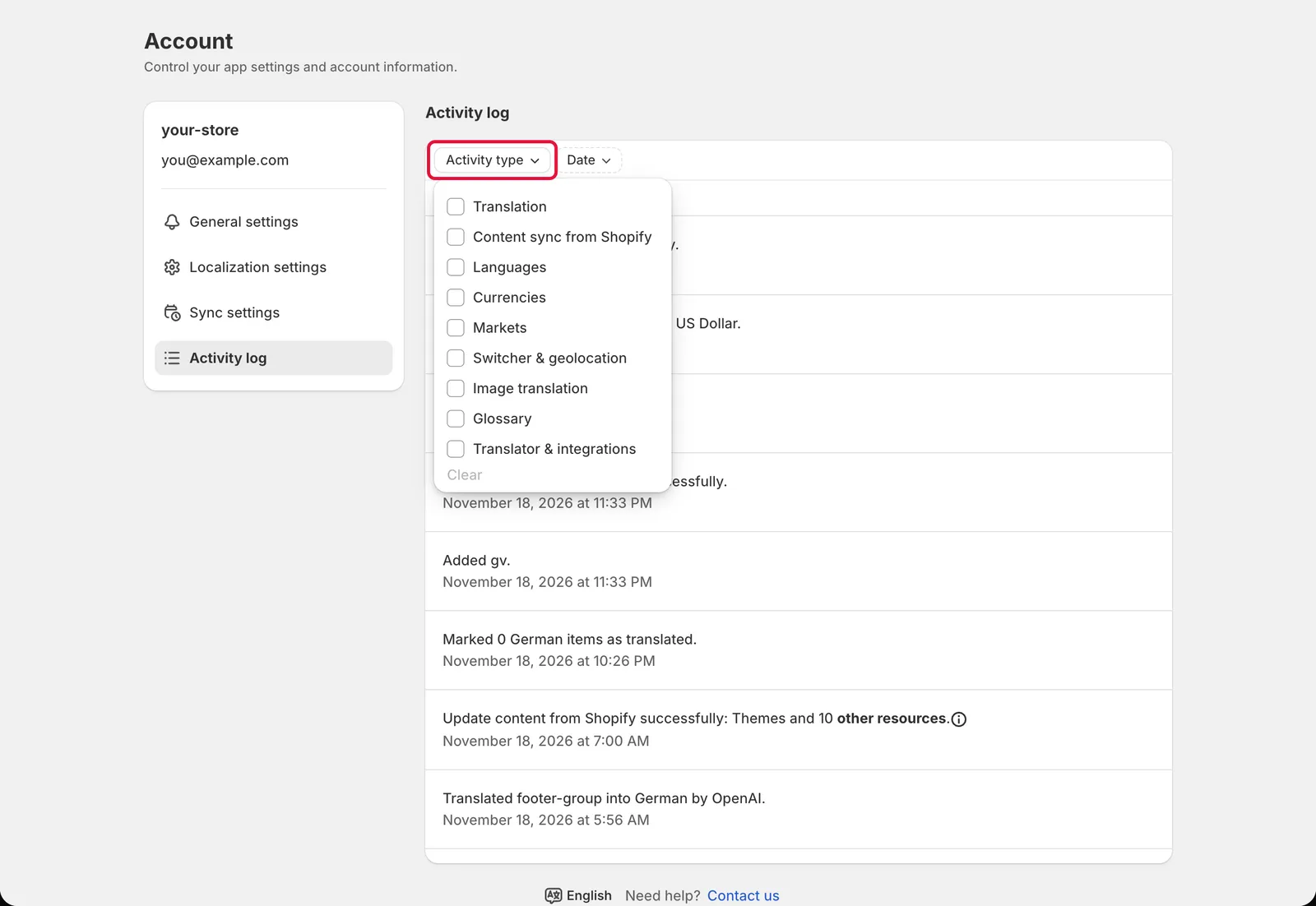
Click Activiteitstype. Tick one or more groups, such as Vertaling, Talen, Valuta's or Abonnement en facturering. The list updates at once and the menu stays open. Click Wissen to untick all groups.
Filter by date
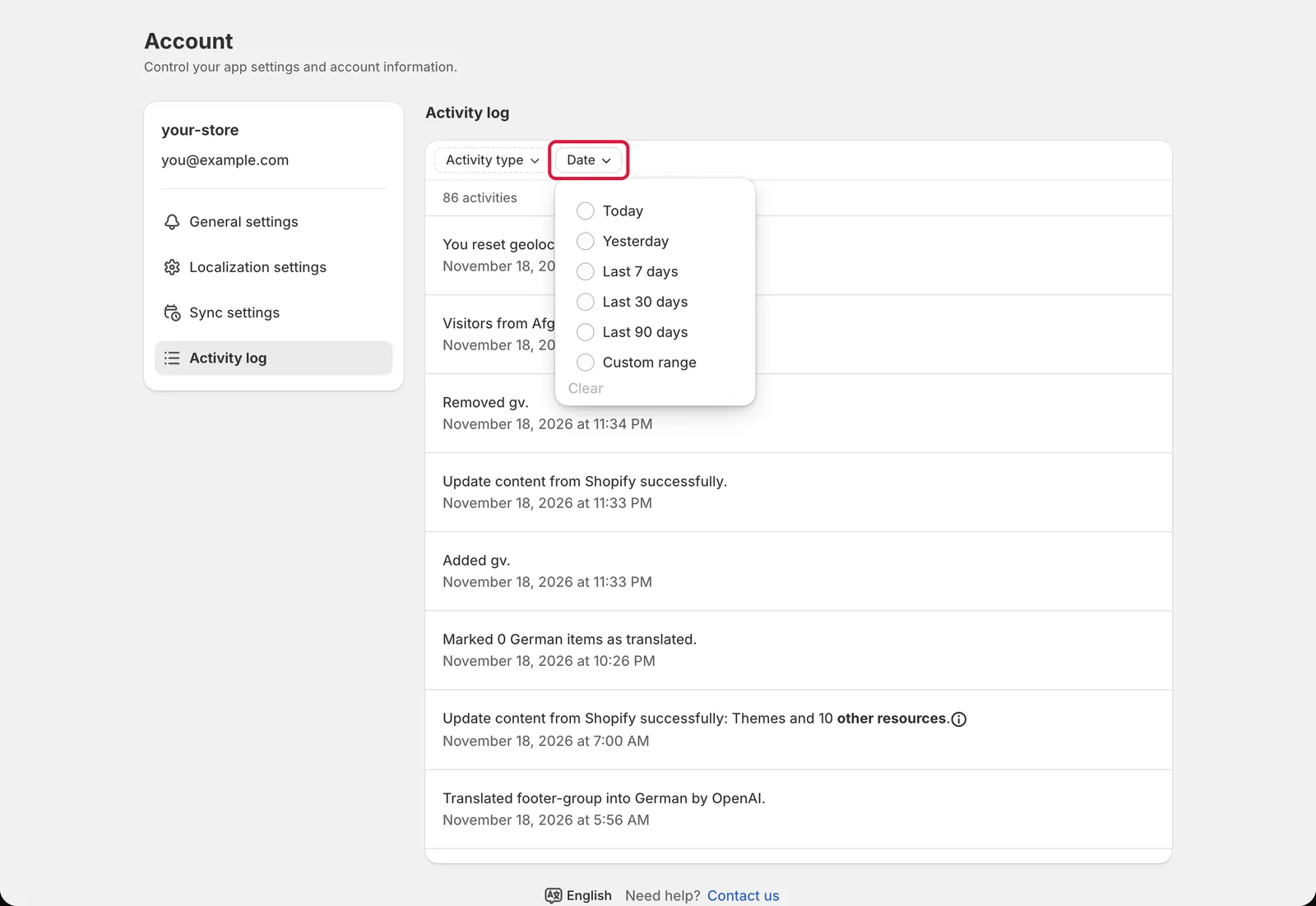
Click Datum. Choose Vandaag, Gisteren, Laatste 7 dagen, Laatste 30 dagen or Laatste 90 dagen. To pick your own days, choose Aangepaste periode and click the first and the last day in the calendar. A custom range can be up to 90 days. You cannot pick a day after today.
Clear the filters
A filter you applied shows on its button. Click the x on a button to remove that filter, or click Alles wissen to remove all of them.
Good to know
- If no line matches your filters, the page shows Geen resultaat gevonden. Change the filters to see more lines.
- A store with no activity yet shows Nog geen activiteit. Lines appear here when you change your languages, currencies, switcher or plan.
- Repeated syncs from Shopify are grouped into one line that says how many times content was updated.
- A custom range of more than 90 days is not applied. The page shows Kies een periode van maximaal 90 dagen.
- If the log cannot be loaded, a banner says so. Click Opnieuw proberen to load it again.
Gerelateerde artikelen
General settings: app language
Change the language of the SmartCS screens in your Shopify admin. The choice is saved for your store and does not change what shoppers see.
Deactivate or uninstall SmartCS
Remove SmartCS from your store, or end a paid plan and keep your data on the Free plan. See what each option keeps and what it removes.
Laatst bijgewerkt: 18 november 2026