Moving to SmartCS from another translation app
Switch from another translation app and keep the translations it saved in your store, without paying to translate them again.
Switch to SmartCS from another translation app and keep the translations that app already saved in your store.
Most translation apps save their translations in Shopify. When you remove such an app, the translations stay in your store. SmartCS reads them, so you do not translate the same text twice.
Before you start
- Every language in your store, except the source language, counts toward your language limit. This includes languages the old app added.
- SmartCS reads existing translations only for languages with translation edits turned on. A language over the limit still appears, but with edits turned off, so nothing is read for it. See Turn translation edits on or off.
- Do not run two translation apps at the same time. They can write to the same text.
Steps
Turn off the old app
Ask its support team how, because the steps differ for each app. Removing an app usually does not delete the translations it saved in Shopify.
Check your languages
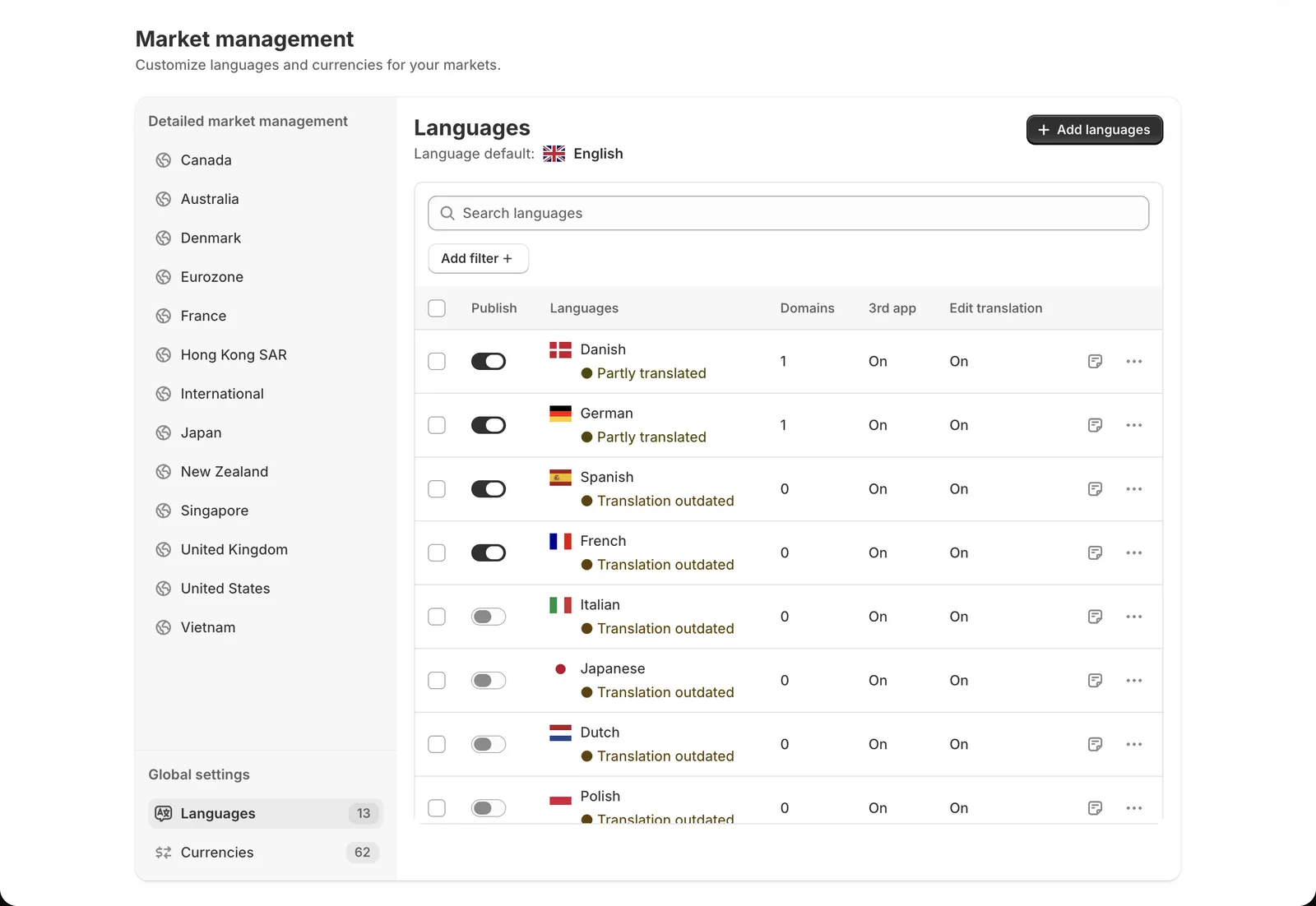
Open 마켓 관리. Under 글로벌 설정, select 언어. Check that your languages are listed and that translation edits are on for the ones you want to keep.
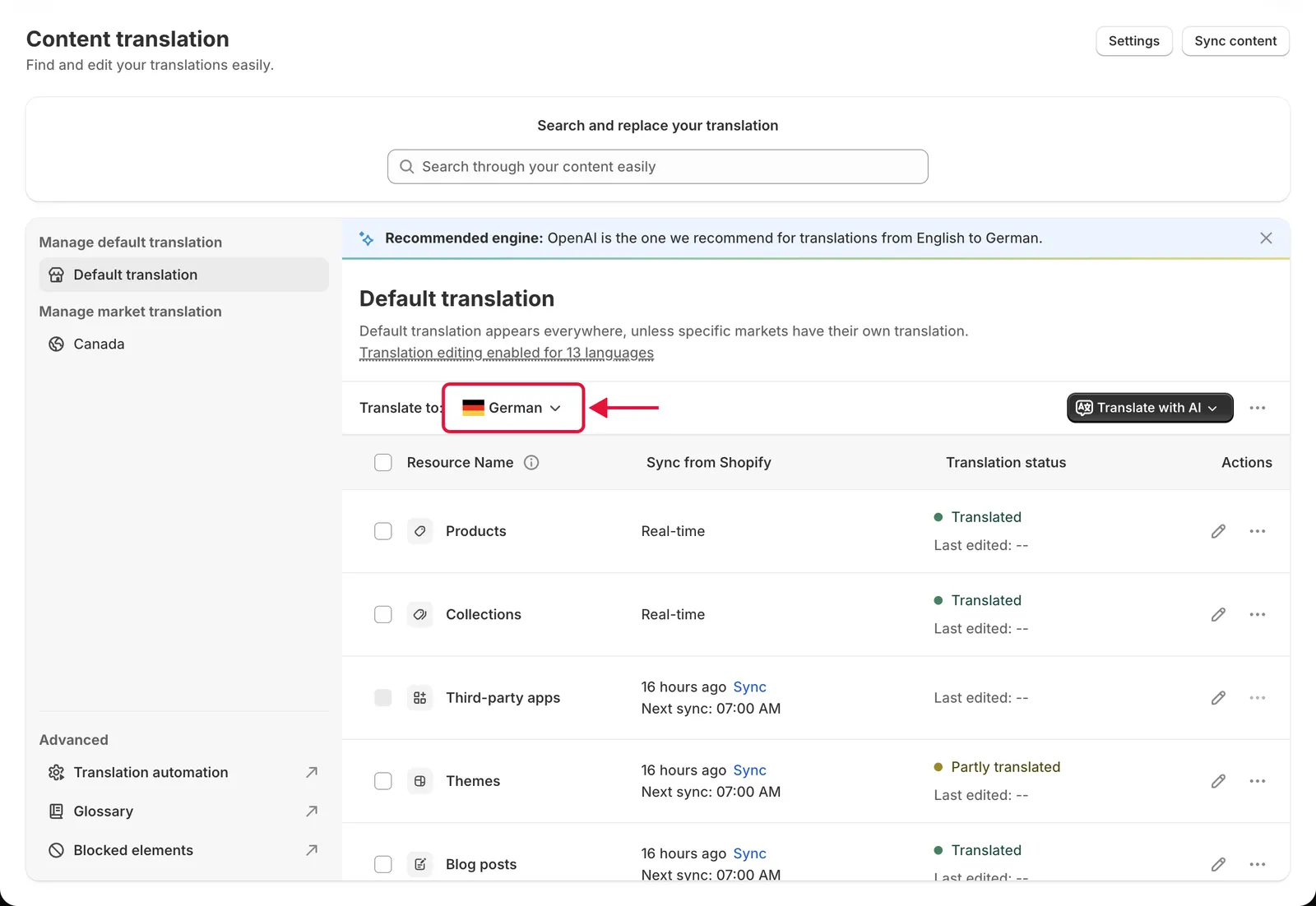
Open a resource
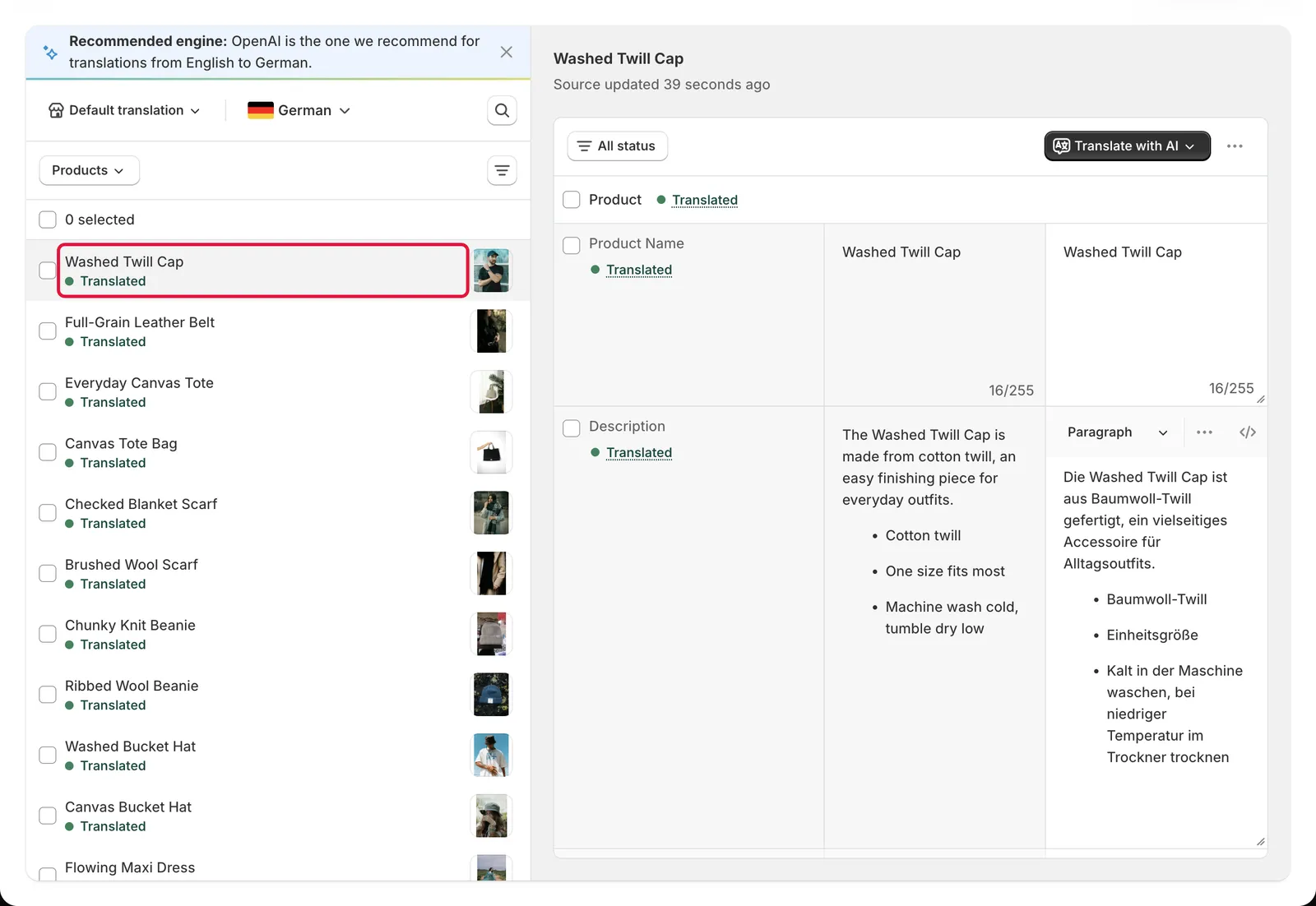
The translations that the old app saved appear in the editor like any other translation. SmartCS reads them when it syncs your content from Shopify.
Keep the translations
To keep the translations, do nothing. AI로 번역 skips a field that already has a translation from another app.
Replace or clear translations
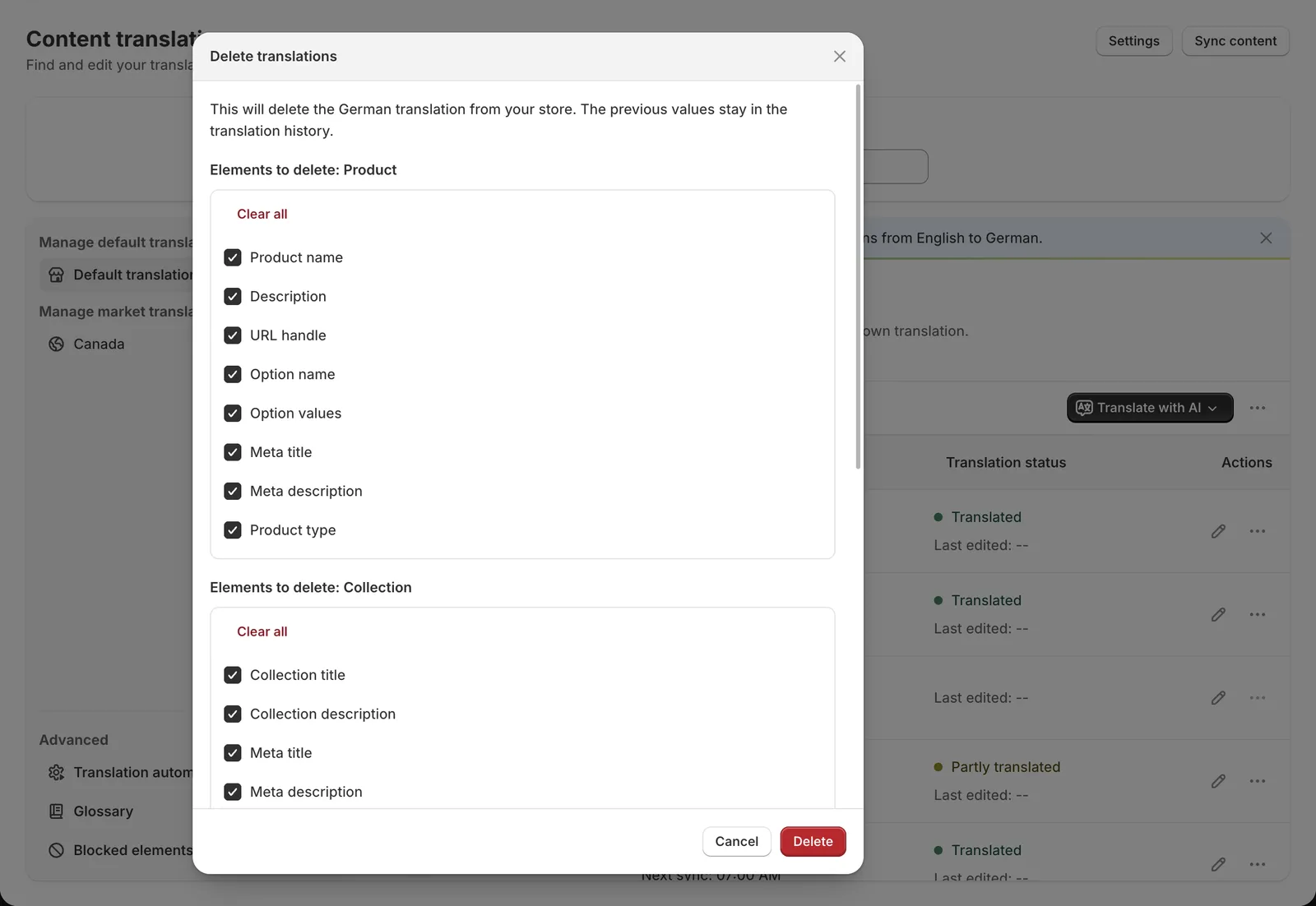
To replace one text, open it and use AI로 번역 on that field. To clear a whole group, open 추가 작업, choose 번역 삭제, and confirm. Then run AI로 번역.
경고
번역 삭제 removes the translation of that language from your store. Your storefront shows the original text for those fields until you translate them again. Decide before you start translating.
Good to know
If someone changes one of these texts in Shopify later, SmartCS reads the new text at the next sync.
If a language selector from the old app still shows on your storefront, check whose it is. Open 스위처 설정, then 표시 모드. Set 표시 대상 to 관리자만 and save. Look at your store as a shopper. A selector that is still there does not belong to SmartCS.
When you are done, set 표시 대상 back to 모든 사람 and save again. While it is on 관리자만, shoppers do not see the SmartCS switcher. See Preview the switcher, choose who sees it, or reset.
관련 문서
What's free and how to get more
See what your store gets for free in SmartCS and how to ask for more features or higher limits.
How SmartCS works with Shopify Markets
Learn how SmartCS reads your Shopify markets and how languages, translations and currencies relate to each market.
최종 업데이트: 2026년 11월 18일