Preview the switcher, choose who sees it, or reset
Choose who can see the switcher on your storefront, check how it looks before visitors do, and go back to the default settings.
Choose who sees the switcher, check how it looks before your visitors do, and go back to the default settings when you want to start again. A store installed today starts with Tutti. A reset on the Generale tab sets it back to Solo amministratori, so check the setting when visitors see no switcher.
Before you start
The Ci sei quasi box at the end of the General tab lists what the switcher needs on your storefront:
- Smartify Currency is turned on in your theme. See Turn on the SmartCS app embed.
- At least one language is published or one currency is added.
- Visibile a is set to Tutti.
Choose who sees the switcher
Open the General tab
In SmartCS, open Impostazioni switcher. Stay on the Generale tab.
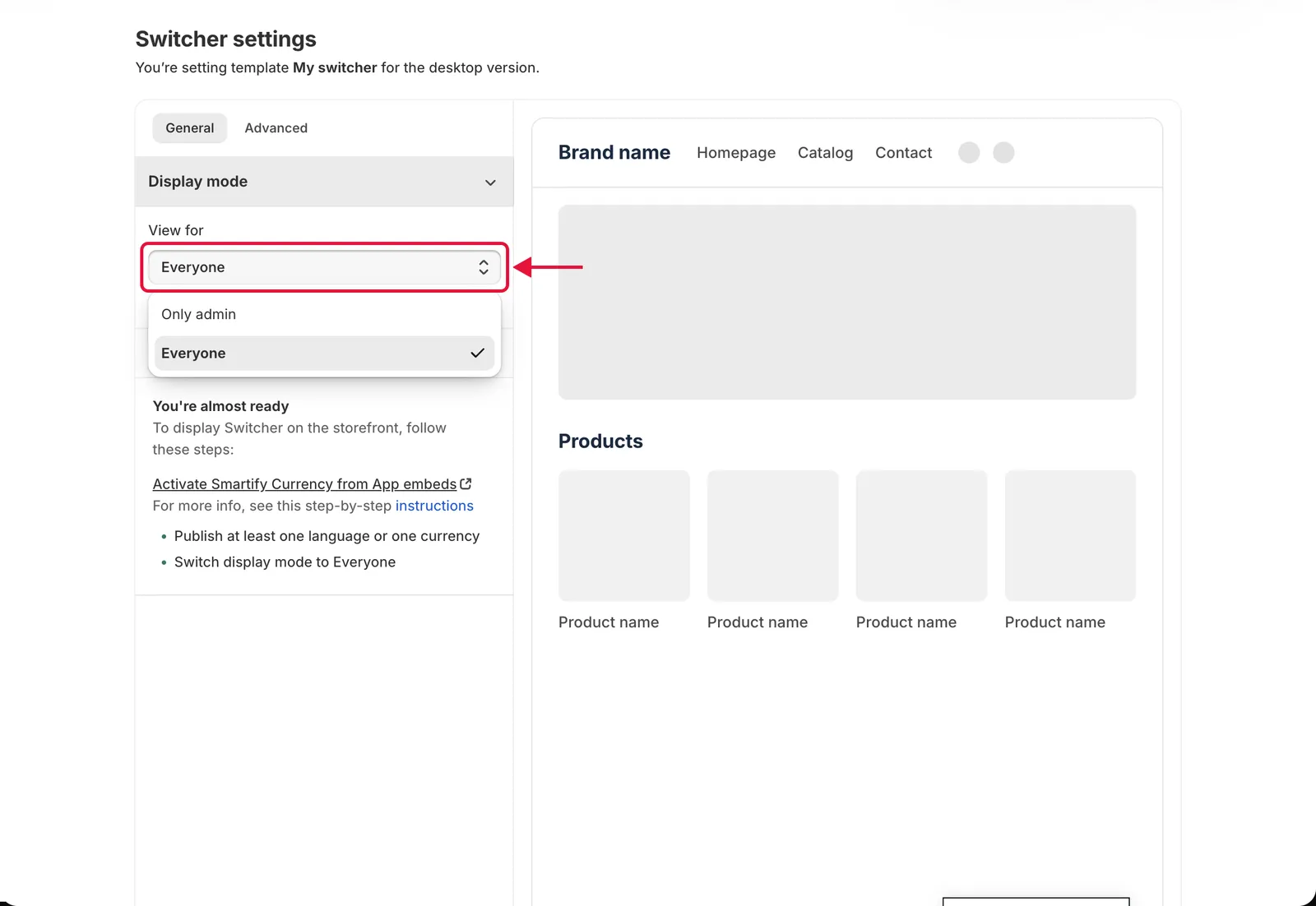
Choose who can see it
In the Modalità di visualizzazione section, open the Visibile a list. Choose Solo amministratori or Tutti. The text under the list changes with your choice.
Save your changes
Click Salva in the save bar. One choice applies to both the desktop and the mobile version.
Preview the switcher
Check the app preview
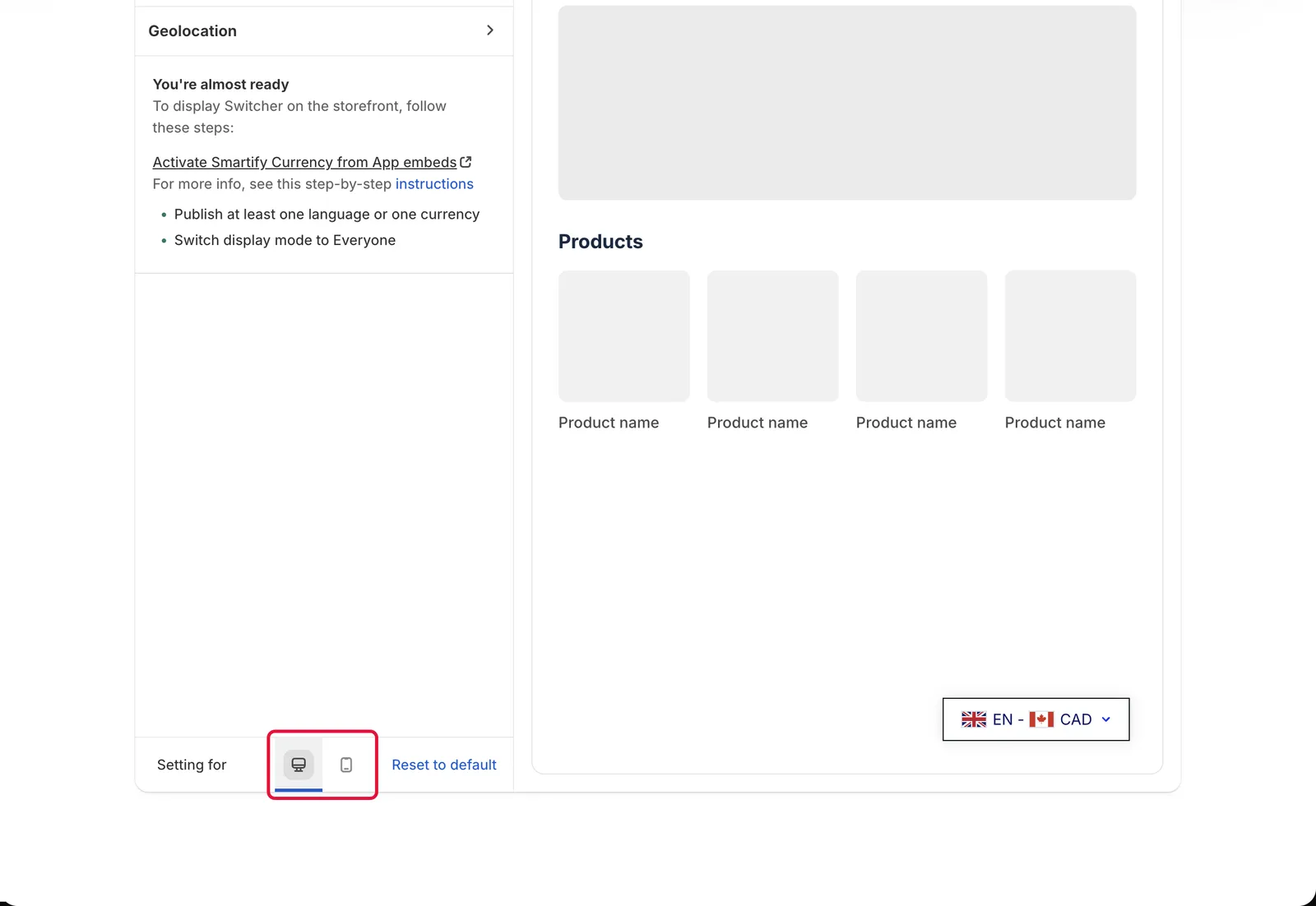
Next to the settings, the preview shows a sample store page with your switcher on it. Under Impostazione per, choose the desktop or the mobile version. On a narrow screen, the page shows the settings or the preview, one at a time.
Open your store
Click Anteprima sul negozio online at the top of the page. Your storefront home page opens in a new tab. While Visibile a is Solo amministratori, the switcher does not show there. Check it in the theme editor instead.
View it full screen
Click Visualizza a schermo intero to work in a larger window. The button is off while you have unsaved changes. Save or discard them first.
Reset to the default settings
Attenzione
On the Generale tab, a reset also sets Visibile a back to Solo amministratori. Visitors stop seeing the switcher, on desktop and mobile, until you choose Tutti again.
Start the reset
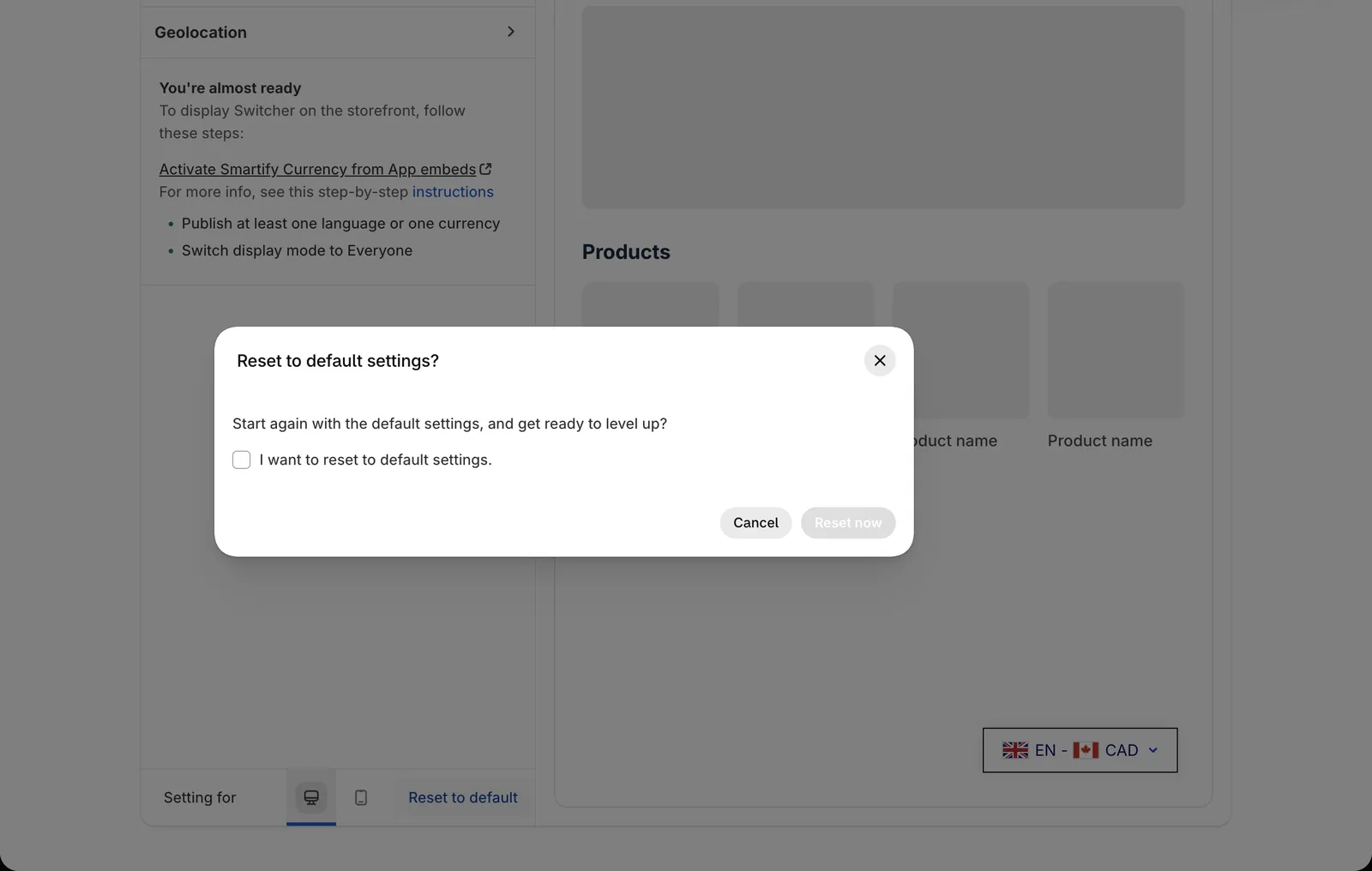
Choose the Generale or the Avanzate tab and the desktop or mobile version. Then click Ripristina predefinito below the settings. The dialog Ripristinare le impostazioni predefinite? opens.
Confirm the reset
Tick Voglio ripristinare le impostazioni predefinite., then click Ripristina ora. The reset is saved at once. You do not need to click Salva.
Good to know
- On the Avanzate tab, a reset puts the version on screen back to your plan's default template. Your saved templates and the other version stay as they are.
- On the Generale tab, a reset changes your whole store, not one version. Visibile a goes back to Solo amministratori. Geolocation goes back to Recommend mode, with the suggestions your plan allows. The first-visit pop-up is on only if your plan has it. Auto switch and the location section are off. Only how the switcher opens is reset for the version on screen alone.
- A reset also discards unsaved changes to the version on screen.
- While Visibile a is Solo amministratori, visitors get no switcher and no price conversion from the app.
- Visibile a is the only visibility setting. You cannot hide the switcher on one page, for one country or for one market.
- The app preview is a sample page, so it can differ from your theme. Treat your storefront as the final check, and do not expect the preview to match it pixel for pixel.
- A switcher with only one language and one currency has nothing to show. The preview then says Lo switcher è nascosto nel tuo negozio perché non ha più nulla da mostrare.
- Switcher not on your storefront? See The switcher or a currency doesn't show.
Articoli correlati
Add custom CSS to the switcher
Add your own CSS to change how the switcher looks on your store, and learn the size limit and what the field accepts.
Geolocation: switch or recommend by visitor location
Switch a visitor's currency and language by location, or recommend them in a pop-up on the first visit, using Auto switch or Recommend mode.
Ultimo aggiornamento: 18 novembre 2026