Add and publish currencies
Add currencies on the Currencies page so your storefront can show prices in more than your store currency. New currencies are published at once.
Add currencies so your storefront can show prices in more than your store currency. SmartCS converts your prices from your store currency and publishes each new currency to your storefront at once.
Before you start
Your store currency is the one prices convert from. The app shows it next to Devise par défaut :. It never appears in the list of currencies you can add.
Your plan sets how many currencies you can publish, not counting your store currency:
Forfait Free : 3 devisesOnly published currencies count toward this number. An unpublished currency does not.
Steps
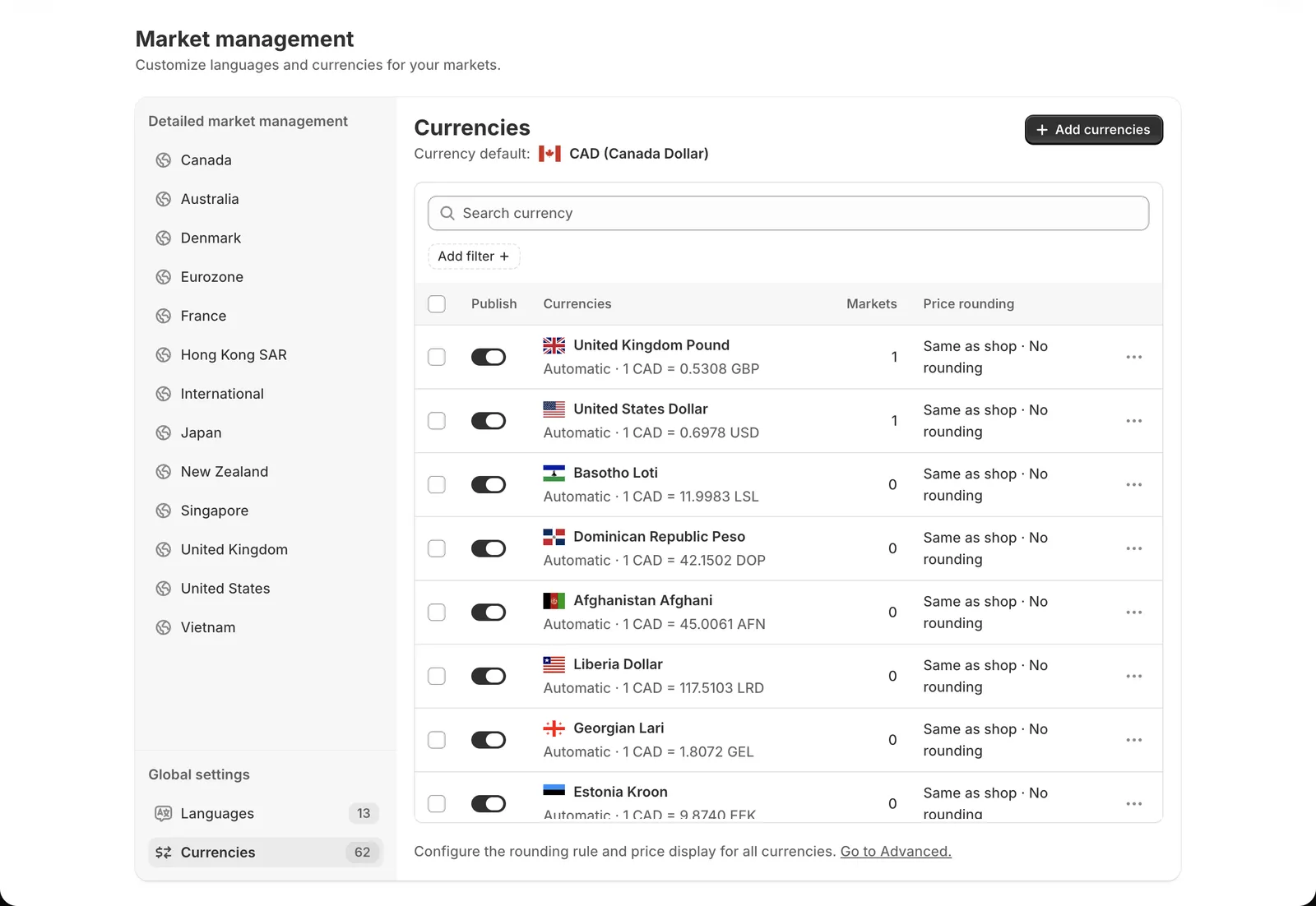
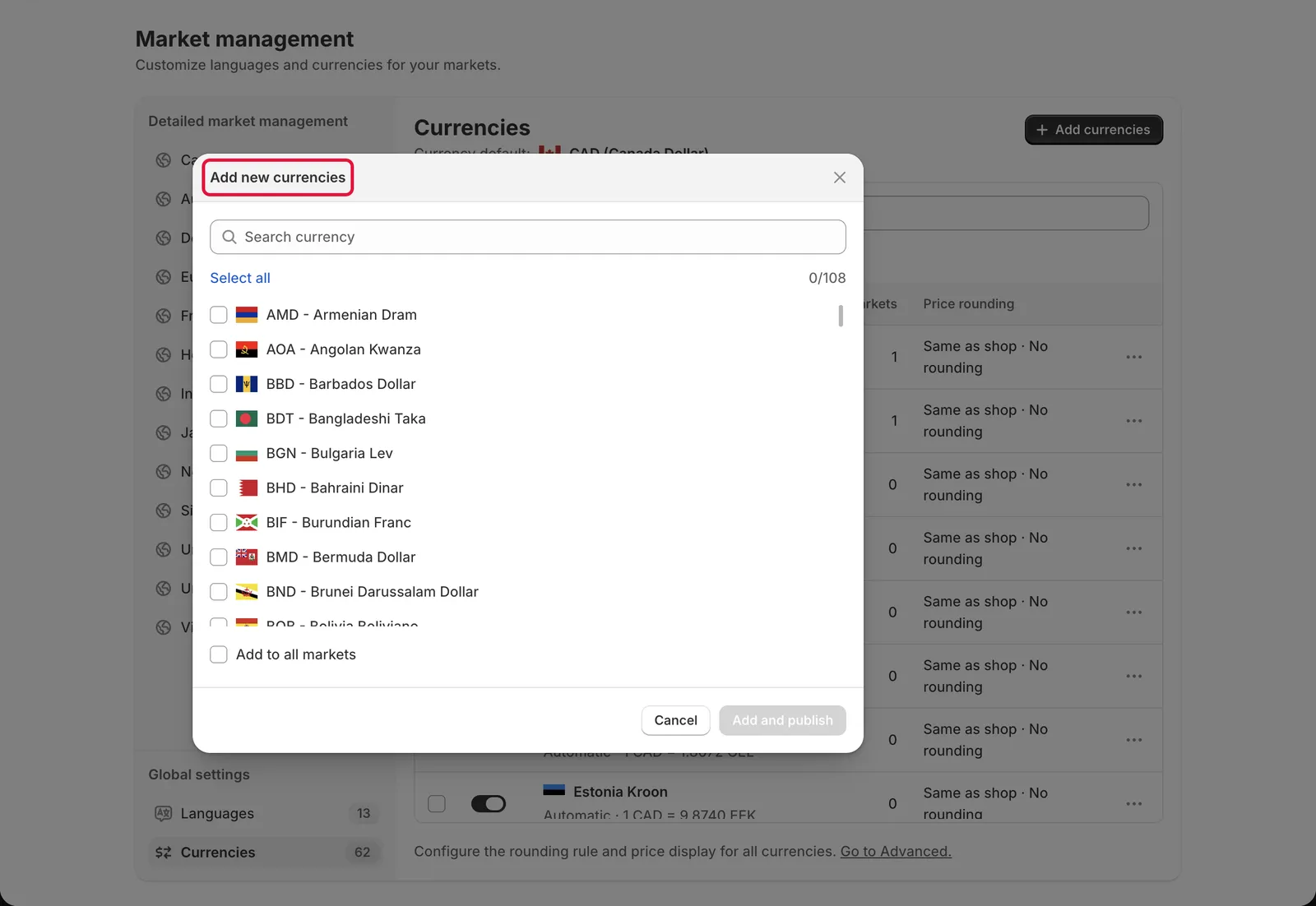
Find and tick currencies
Use Rechercher une devise to find a currency by code or name. Currencies you already added are not listed. Tick each currency you want. The counter shows how many you picked out of how many are available. You can also click Tout sélectionner or Tout effacer.
Add to all markets
Tick Ajouter à tous les marchés if you also want the new currencies listed under every market. Leave it empty to add them to the store only. You can manage each market later. See Manage a market.
Add and publish
Click Ajouter et publier. The app shows Devises ajoutées. The new currencies appear in the table with the Publier switch on.
Good to know
- The Marchés column shows how many of your markets use each currency. A dash means the app does not know yet.
- When your picks fill the limit, the other boxes turn off and a Limite atteinte note appears. The Ajouter des devises button also turns off when the limit is already reached.
- Each new currency uses the automatic exchange rate, the default price format and the same rounding as your shop. You can change all three later. See Exchange rates, Format how prices look and Round converted prices.
- The app has no control for reordering currencies. They usually appear in the order you added them.
- If another browser tab or a colleague used the last place at the same moment, nothing is added and the app shows an error. Unpublish or remove a currency, then try again.
- If publishing to your theme fails, the app shows Votre modification est enregistrée, mais sa publication sur votre thème a échoué : les prix de la boutique en ligne n'ont donc pas encore changé.
- A currency marked Limite dépassée is saved but hidden from your storefront. Your store can show fewer currencies than you published. Remove the ones you do not need. See Unpublish or remove currencies.
Remarque
While your store is in Multiple currencies mode, Shopify Markets sets prices. The app shows Shopify Markets gère ces prix. The Publier switches and Modifier le format are turned off. To see how the two modes differ, read Multiple currencies mode vs Switcher mode.
Articles associés
Automatic updates for a language
Choose which changes to your products, collections and other content are translated again automatically for each language.
Supported currencies
See which currencies SmartCS can convert your prices into, and how to search the list before you add one to your store.
Dernière mise à jour : 18 novembre 2026