Unpublish, remove and restore languages
Hide a language from shoppers, remove it from your store, or restore a removed language within 30 days.
Unpublish a language to hide it from shoppers. Remove a language to take it out of your store. You can restore a removed language within 30 days.
Unpublish a language
Unpublishing keeps the language and its translations. Shoppers no longer see it.
Open Languages
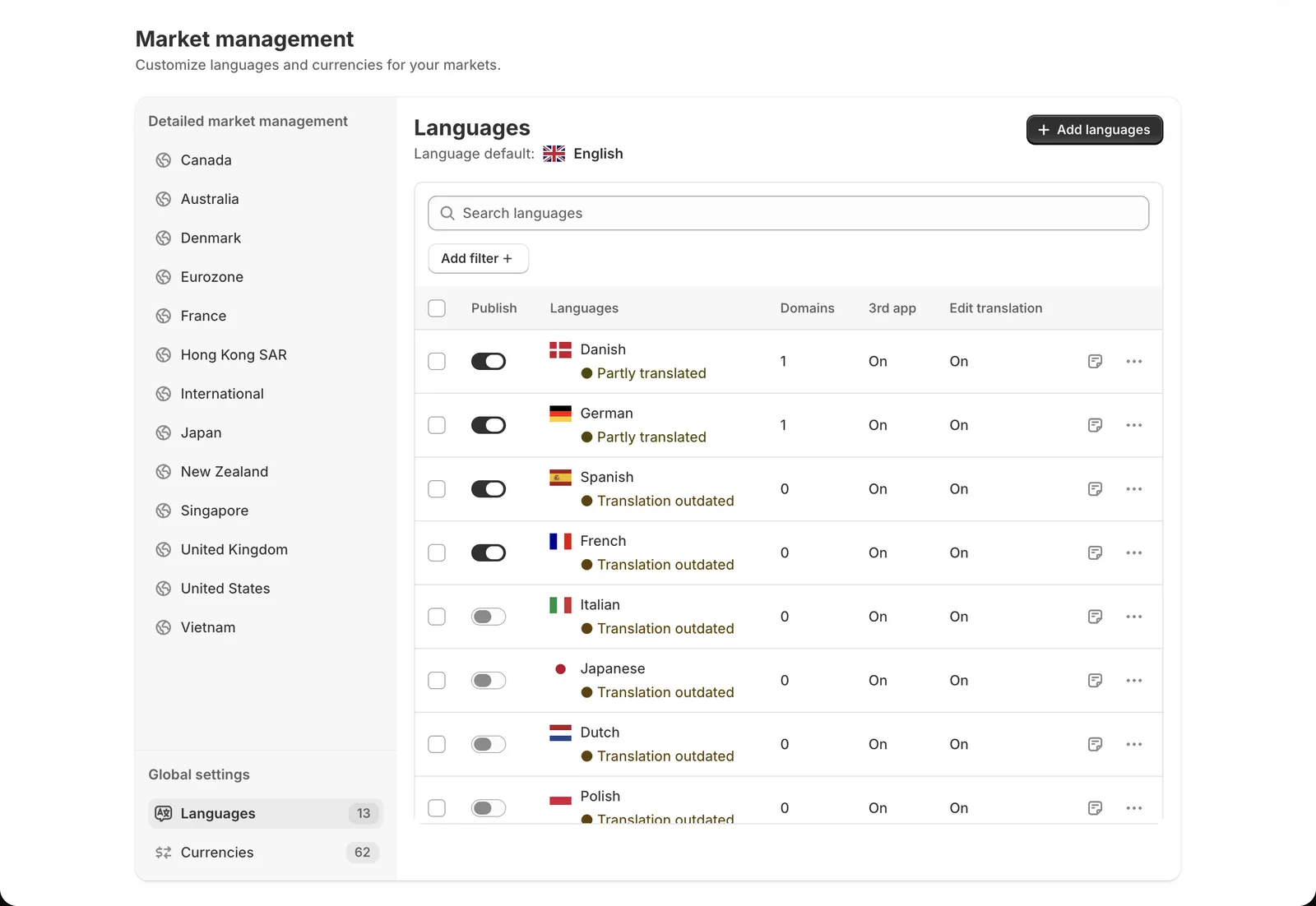
Open SmartCS: Currency & Translate, then go to Gestión de mercados. Under Configuración global, select Idiomas.
Turn off Publish
Turn off the switch in the Publicar column of the language row.
To unpublish several languages, tick their rows and select Anular publicación in the bar above the table. Unpublishing is never blocked.
Remove a language
Removing a language takes it out of your Shopify store. Its translations are removed from your store and from automation rules. SmartCS keeps a backup for 30 days.
Open the actions menu
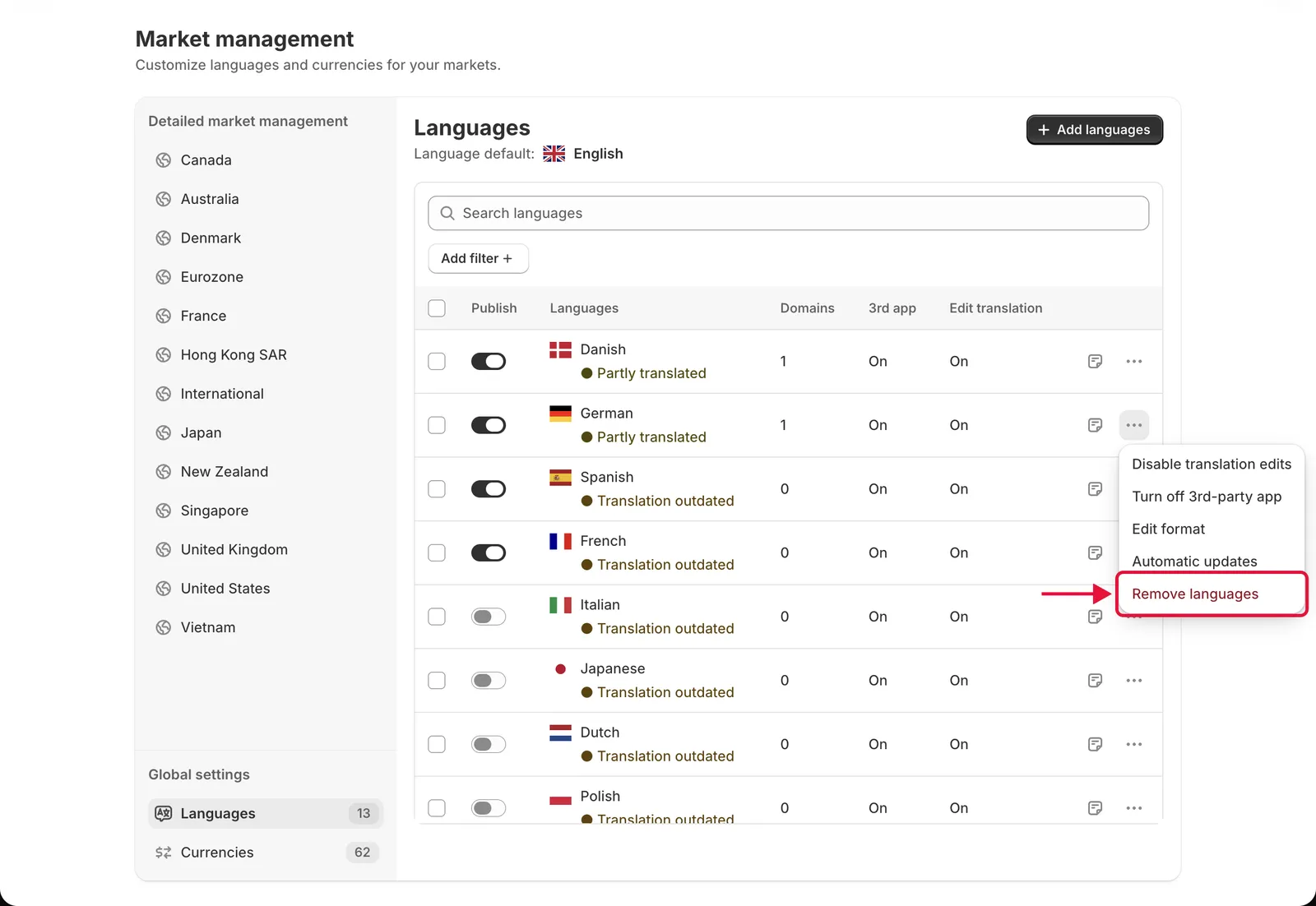
In the row of the language, open the actions menu (the three dots). Select Quitar idiomas.
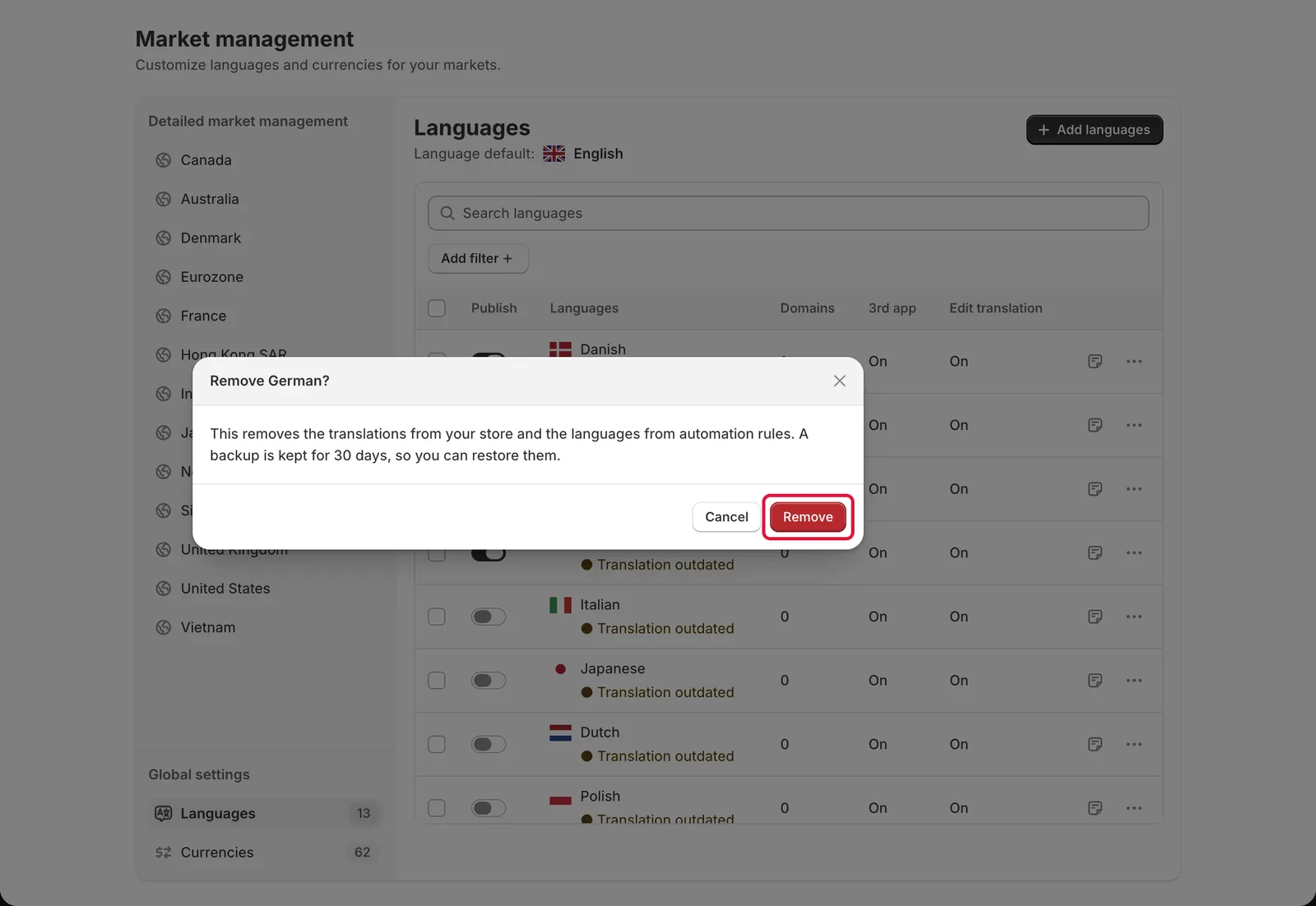
To remove several languages, tick their rows and select Quitar idiomas. If one language fails, SmartCS stops and shows which one.
A removed language no longer counts toward your language limit. You cannot remove your source language.
Restore a language
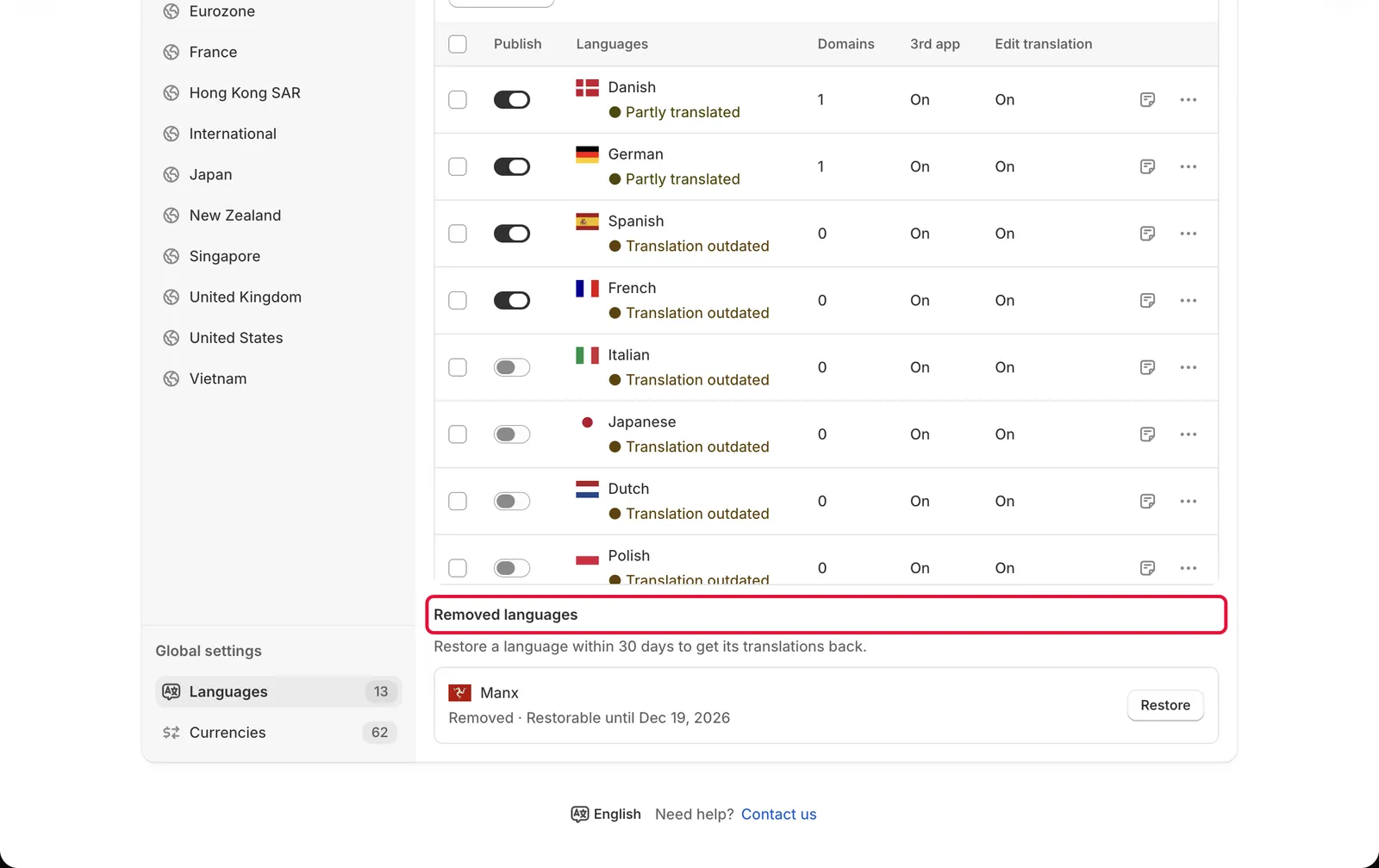
Below the table, the Idiomas quitados list shows each removed language and the date until you can restore it.
Restore the language
Select Restaurar.
SmartCS adds the language to your store again and sends its translations back. The language needs room in your language limit, like any new language.
Good to know
- After 30 days the row shows Caducado and you cannot restore it. Add the language again to start from nothing.
- A language that you remove in the Shopify admin also appears in the removed list.
- Languages with translation edits turned off appear in the same list. See Turn translation edits on or off.
Consejo
Not sure? Unpublish first. An unpublished language keeps all its translations and costs you nothing to switch back on.
Artículos relacionados
Turn translation edits on or off
Turn translation edits off for a language you do not use now, and turn them back on within 30 days to get your work back.
Automatic updates for a language
Choose which changes to your products, collections and other content are translated again automatically for each language.
Última actualización: 18 de noviembre de 2026