General settings: app language
Change the language of the SmartCS screens in your Shopify admin. The choice is saved for your store and does not change what shoppers see.
Use Allgemeine Einstellungen to change the language of the SmartCS screens. This changes only what you read in the app.
Steps
Open General settings
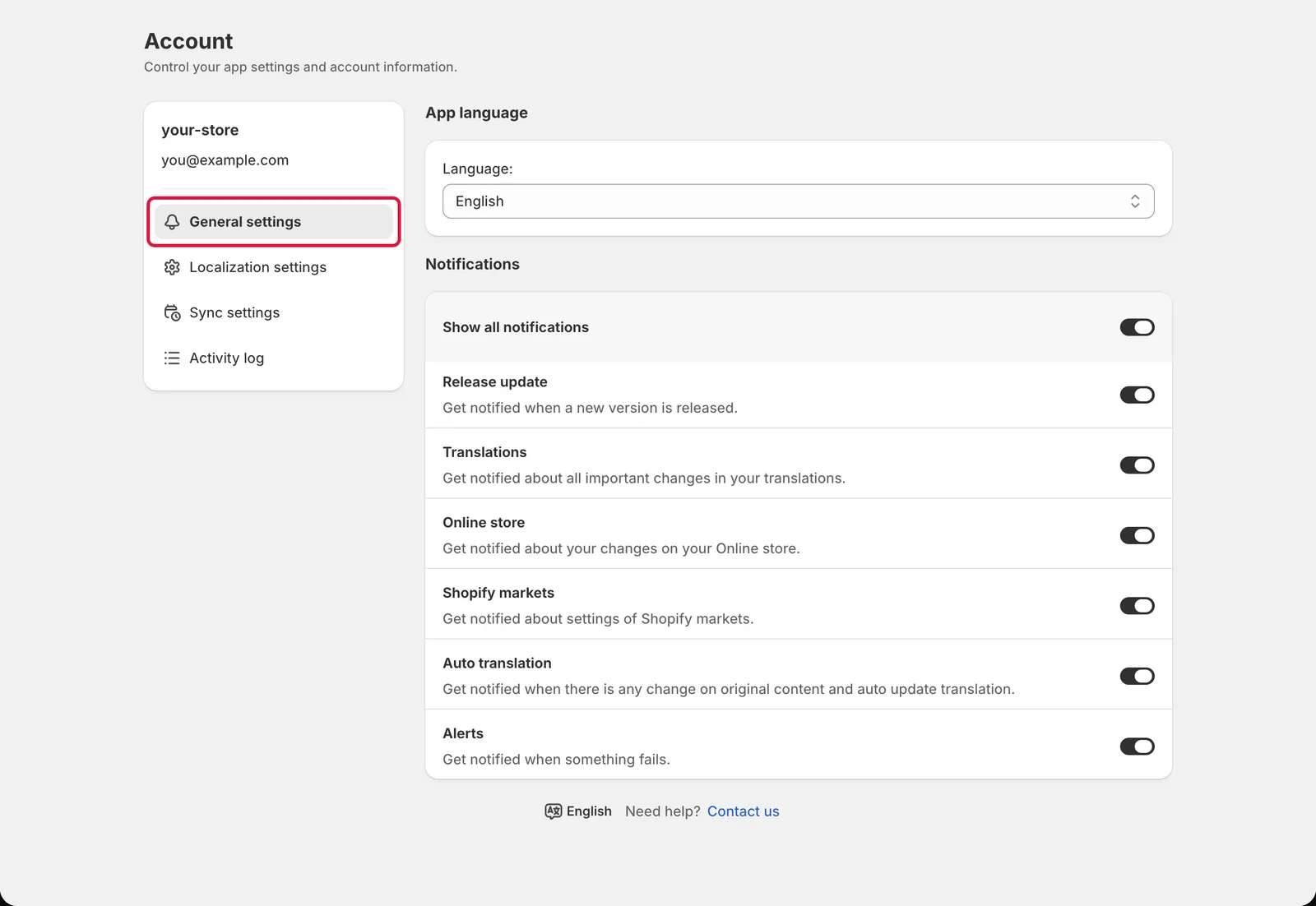
In SmartCS, open Konto & Einstellungen. In the Kontobereiche menu, click Allgemeine Einstellungen. The App-Sprache card is the first one on the page.
Choose a language
Open the Sprache: list and choose a language. Each language is written in English, so you can find yours even when the app shows a language you cannot read.
See the change
The text of the whole app changes at once. There is no Save button. The choice is saved for your store, so everyone who opens SmartCS from this store sees it.
Good to know
- The language switcher in the footer of each page does the same thing. A change in one place also changes the other.
- If the change fails, the app stays in the old language and a banner with the heading Sprache konnte nicht geändert werden says so. Try again.
Hinweis
This setting is only for the app screens. It does not change the languages your store is translated into. See Add and publish languages.
Verwandte Artikel
Sync settings: scheduled or real-time
Choose when SmartCS reads changed content from Shopify: at set times or in real time for products and collections, and which content types the schedule covers.
Activity log
Read a list of the changes made to your languages, currencies, switcher, translations and plan, and filter it by type and date.
Zuletzt aktualisiert: 18. November 2026